You can store a document on the software by going to the vehicle finance page and uploading the document, alternatively by sending the document to your unique imports email address or uploading the document in to the Documents section.
Uploading a Document via the individual Vehicles page
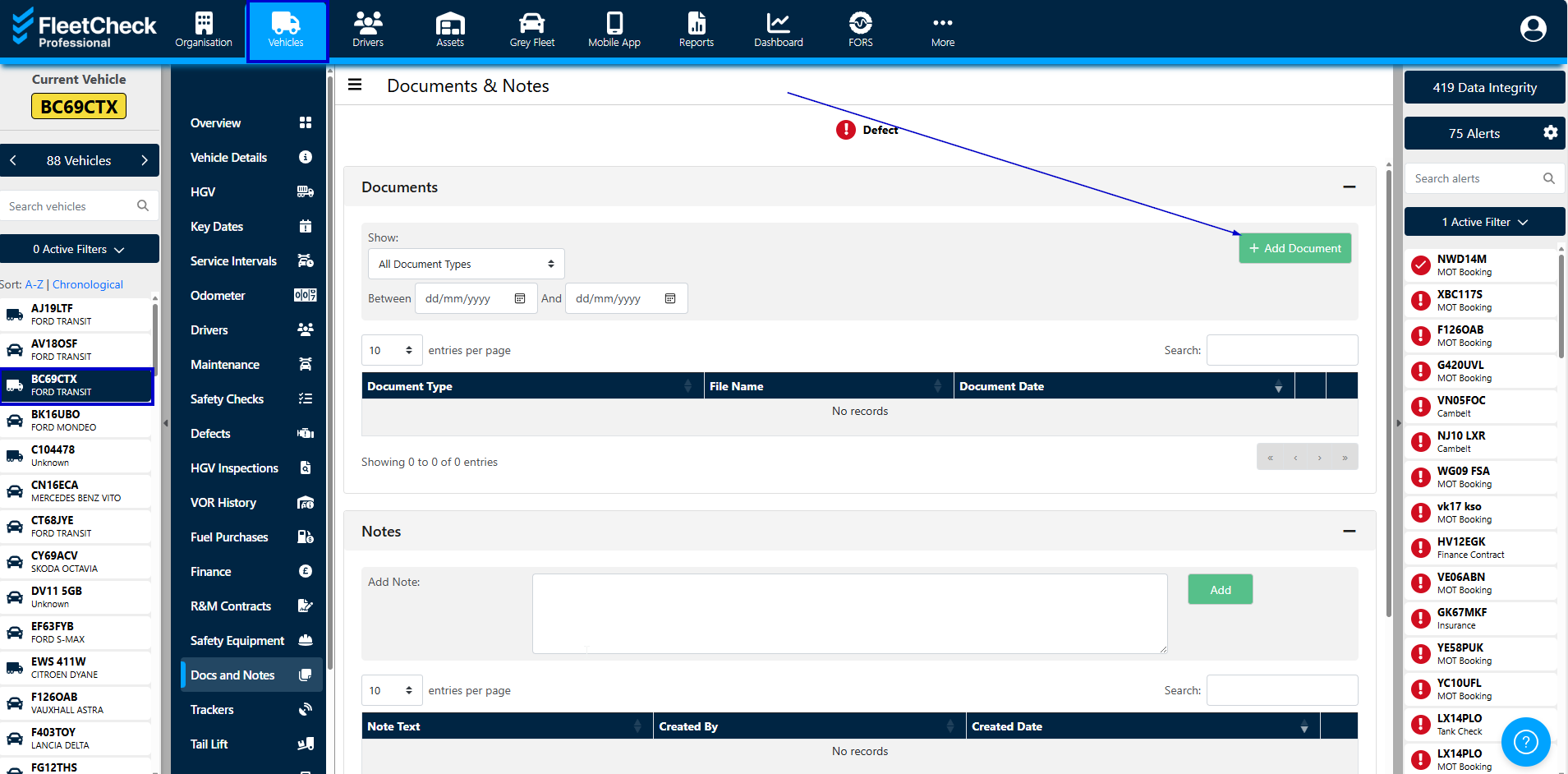
Select the vehicle from the left-hand list and go to the bottom of the summary page there you will find you are able to Add a Document. You will also see you can search for Documents between certain dates.
Uploading a Document via email
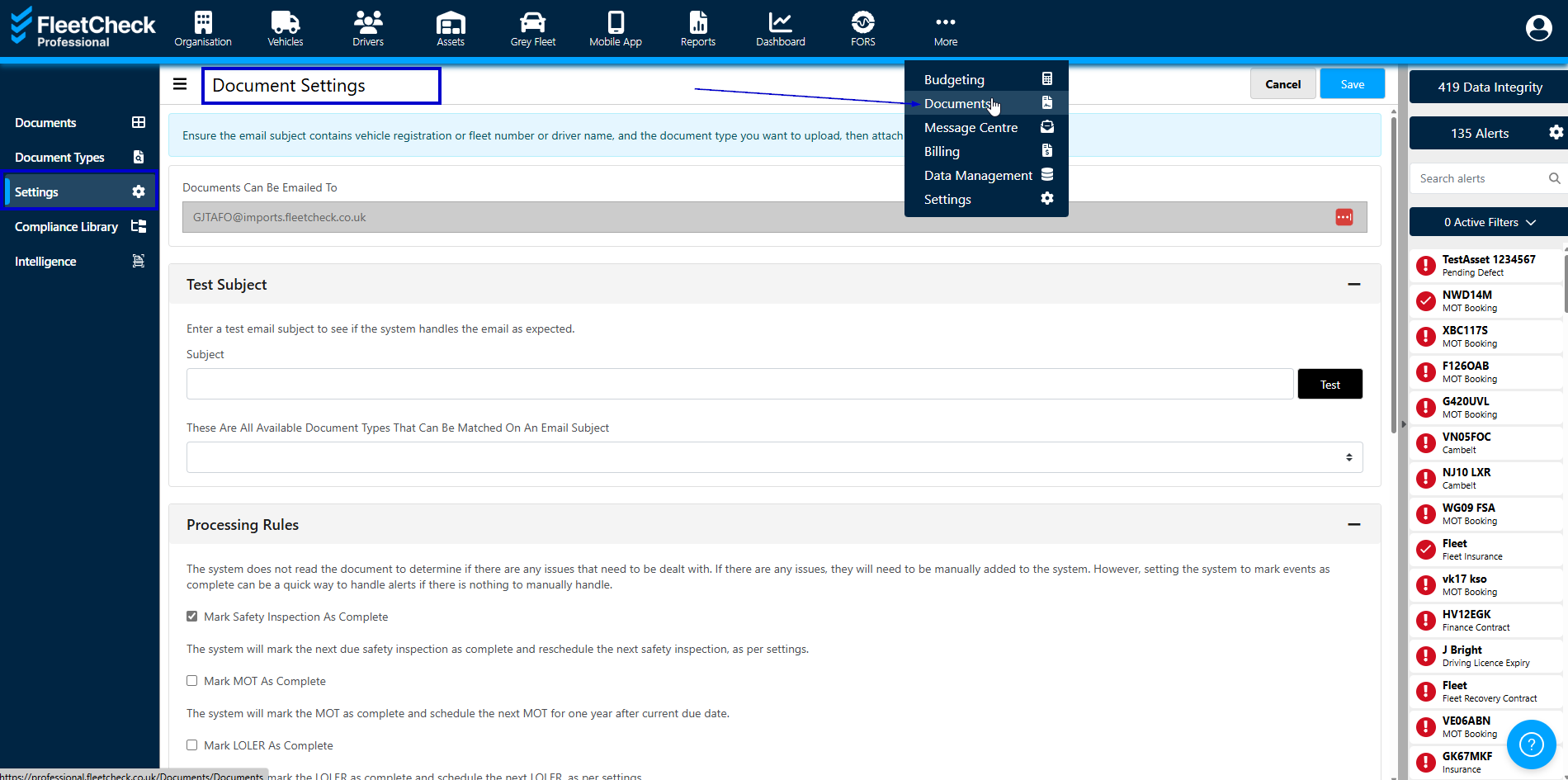
Firstly you will need your unique email address which can be found within ‘Documents’ on the top menu and then the ‘settings’ tab on the left, the unique email is then displayed at the top of the page.
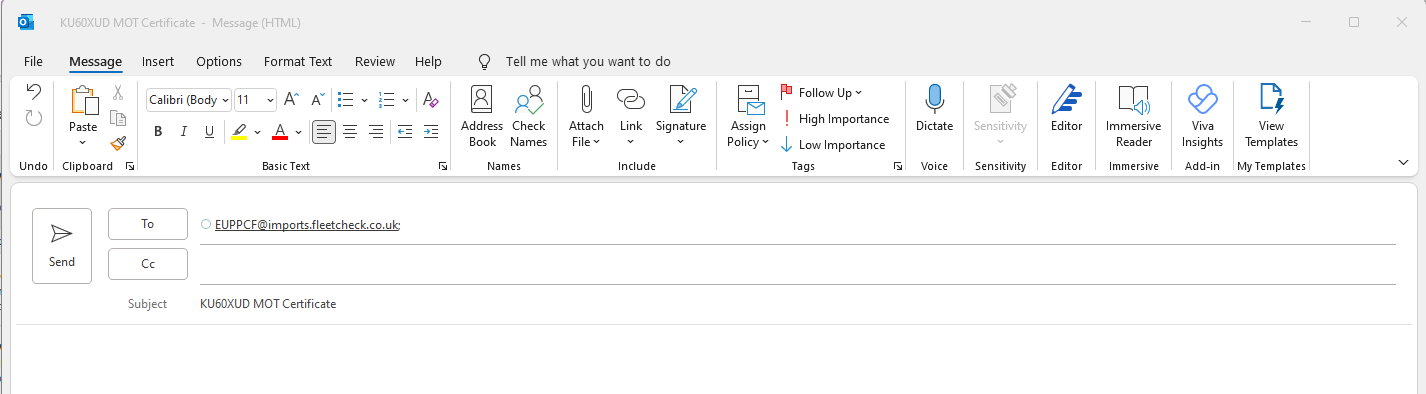
You will then need to compose a new email message to this email address with the document attached. The subject will need to be the vehicle registration/driver name and the document type.
The system will then store the document against the vehicle/driver for you.
Uploading a Document via Documents
Firstly, go to the ‘Documents’ section within the More menu, on the right-hand side select Documents and then select the ‘Add Document’ tab along the top of the page.
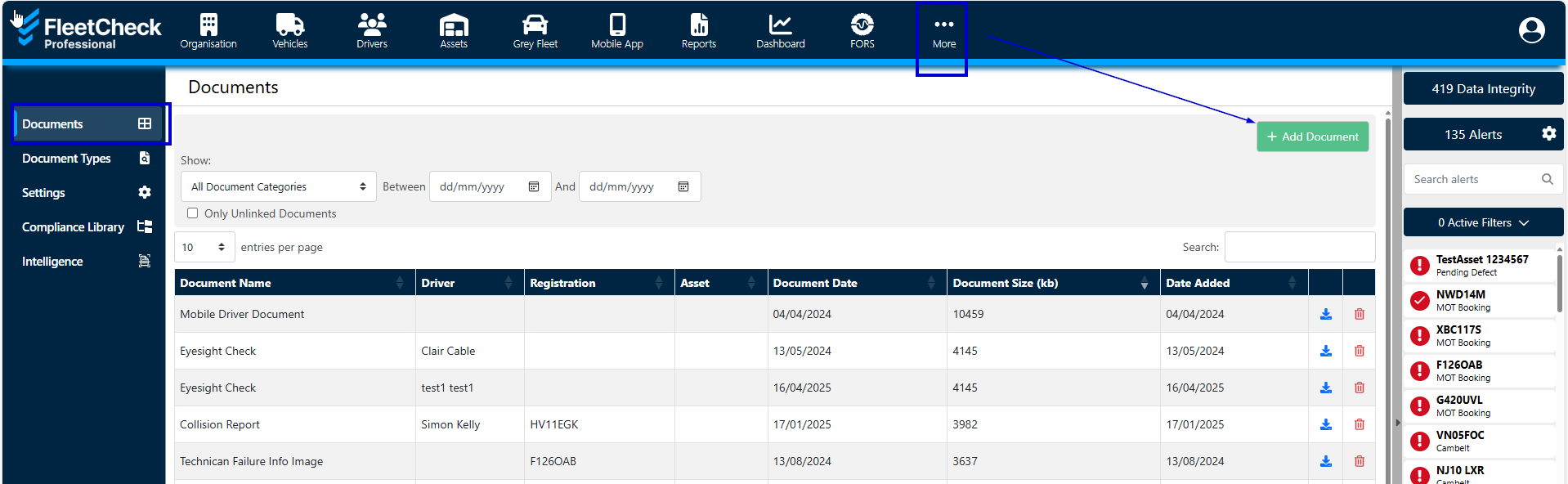
You can then select the category, type and enter a vehicle reg, driver or asset and select the file from your computer using the ‘choose file’ option and then press the ‘upload document’ button.
All Documents added will then display helpfully within the Vehicles overview page within the Documents table on the centre right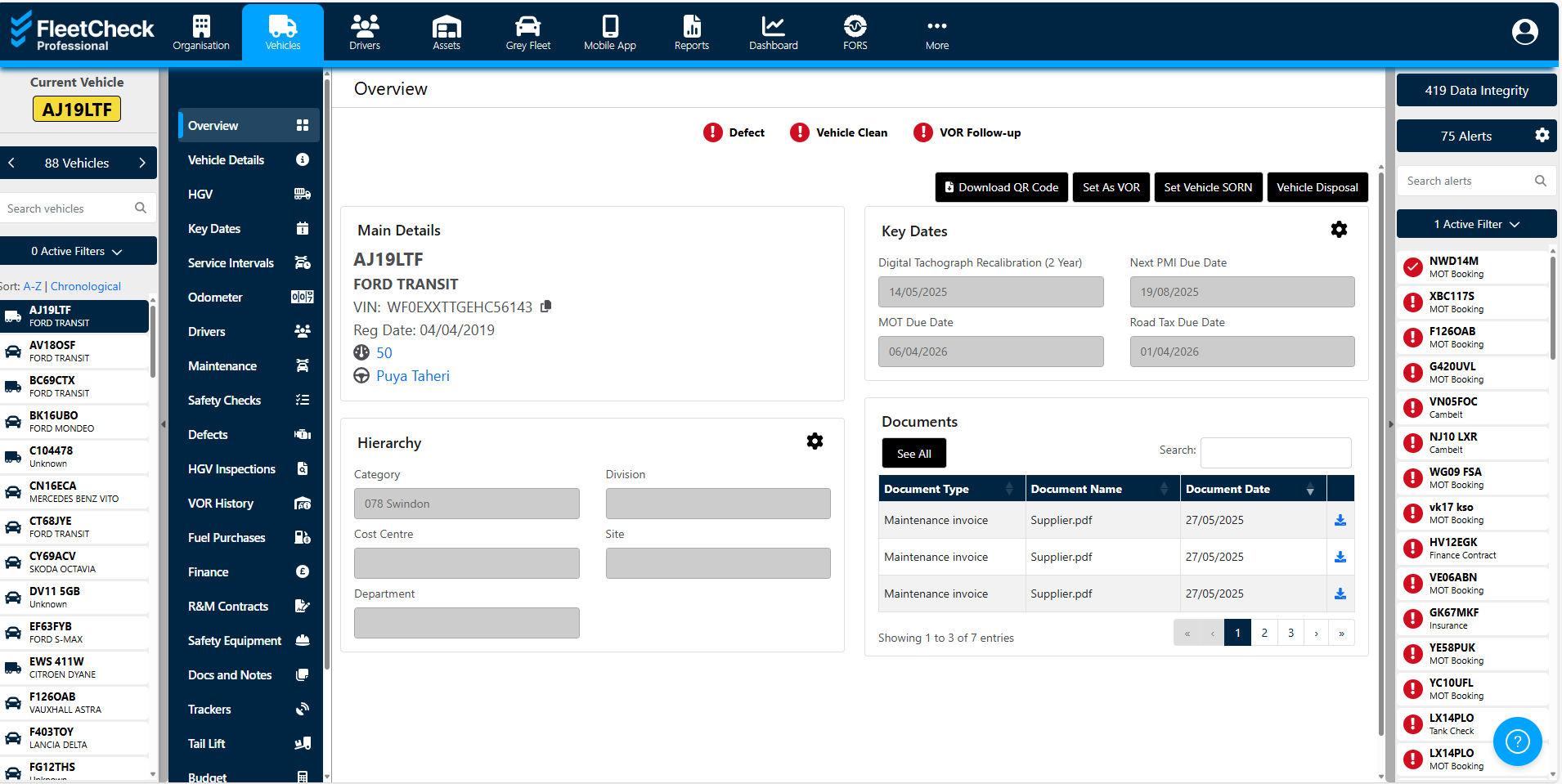
Within this document area you can access a document with ease through the See All button or the search box.