If you are using our FleetCheck Professional package you will see that you have access to the QR code area on the system.
The QR code area allows you to issue QR codes to your vehicles. The QR codes are issued from the system.
The QR codes can be printed out to allow the driver to scan the vehicle as opposed to manually adding the vehicle via the app.
QR codes eliminate driver input error. If you have trailers on the system as vehicles you are able to print the codes out, affix them to the trailers, therefore assuring that the check is completed on the correct trailer.
To activate QR codes on the system go in to the Mobile App tab on the top and then Settings area on the left menu on FleetCheck Pro
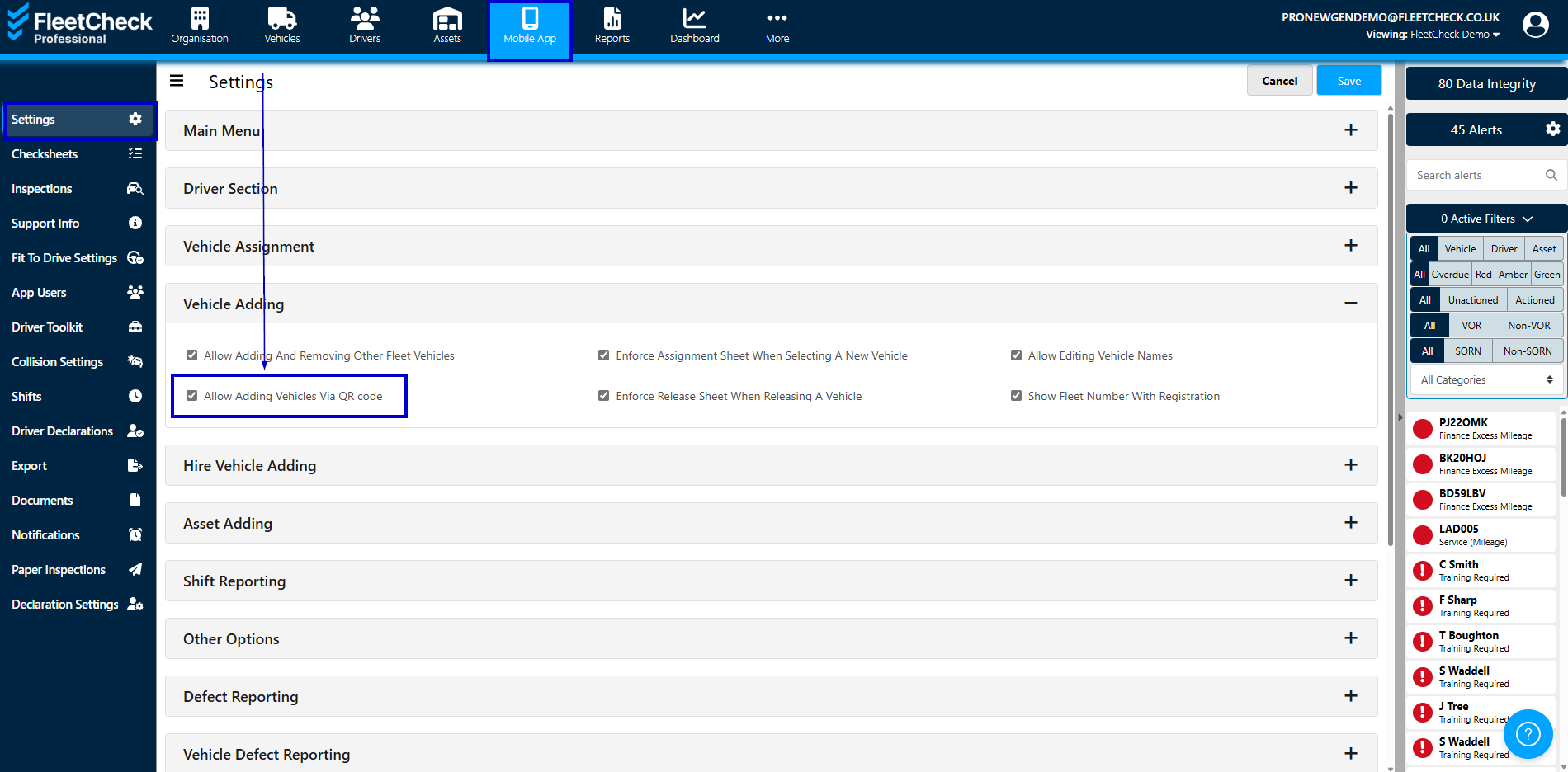
Scroll down to Vehicle Adding and ensure Allow adding Vehicles Via QR code is ticked.

The QR codes can now be obtained from the Vehicle in the Summary section of the system
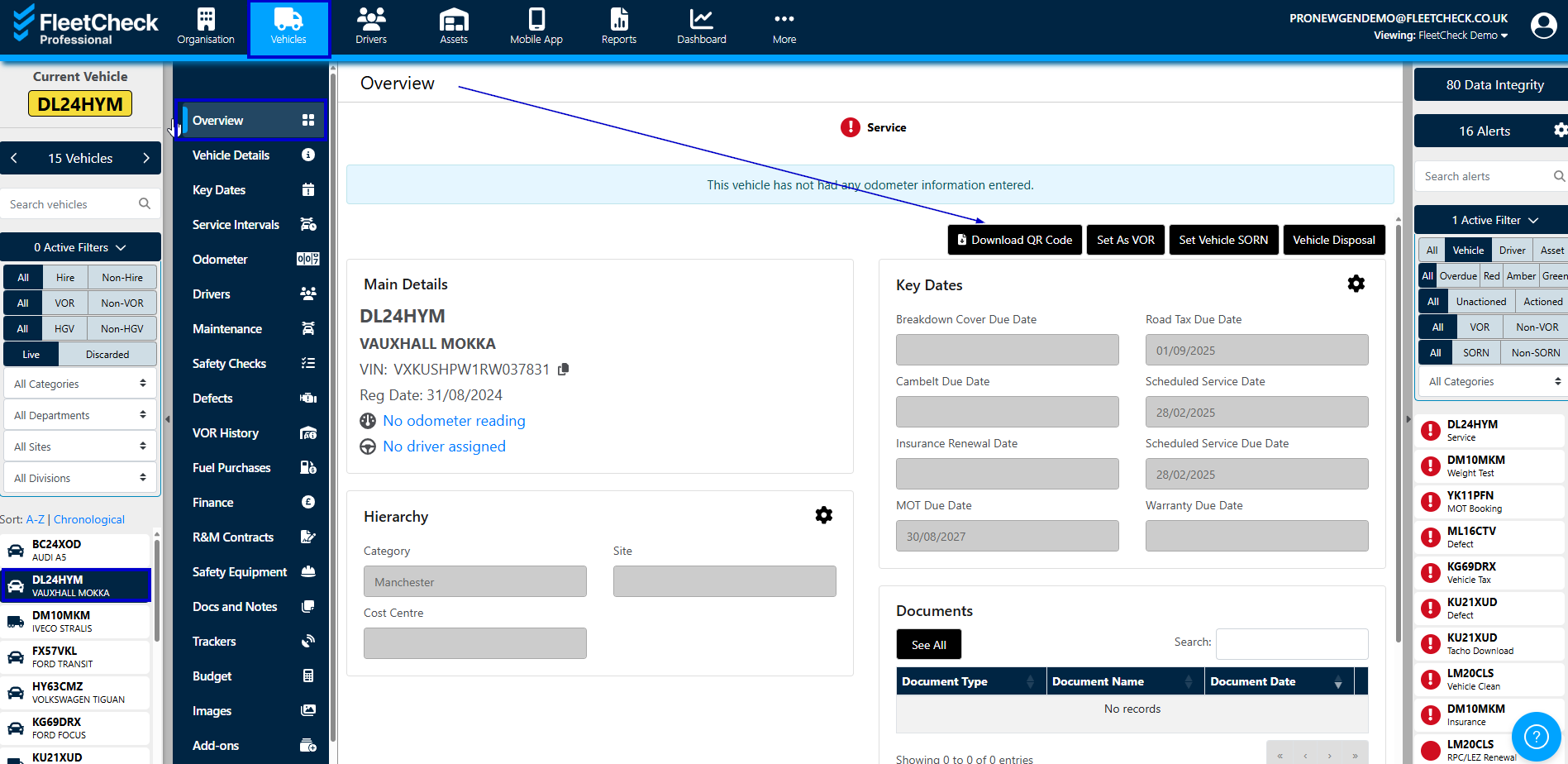
When you select Download the QR code will appear ready to be downloaded
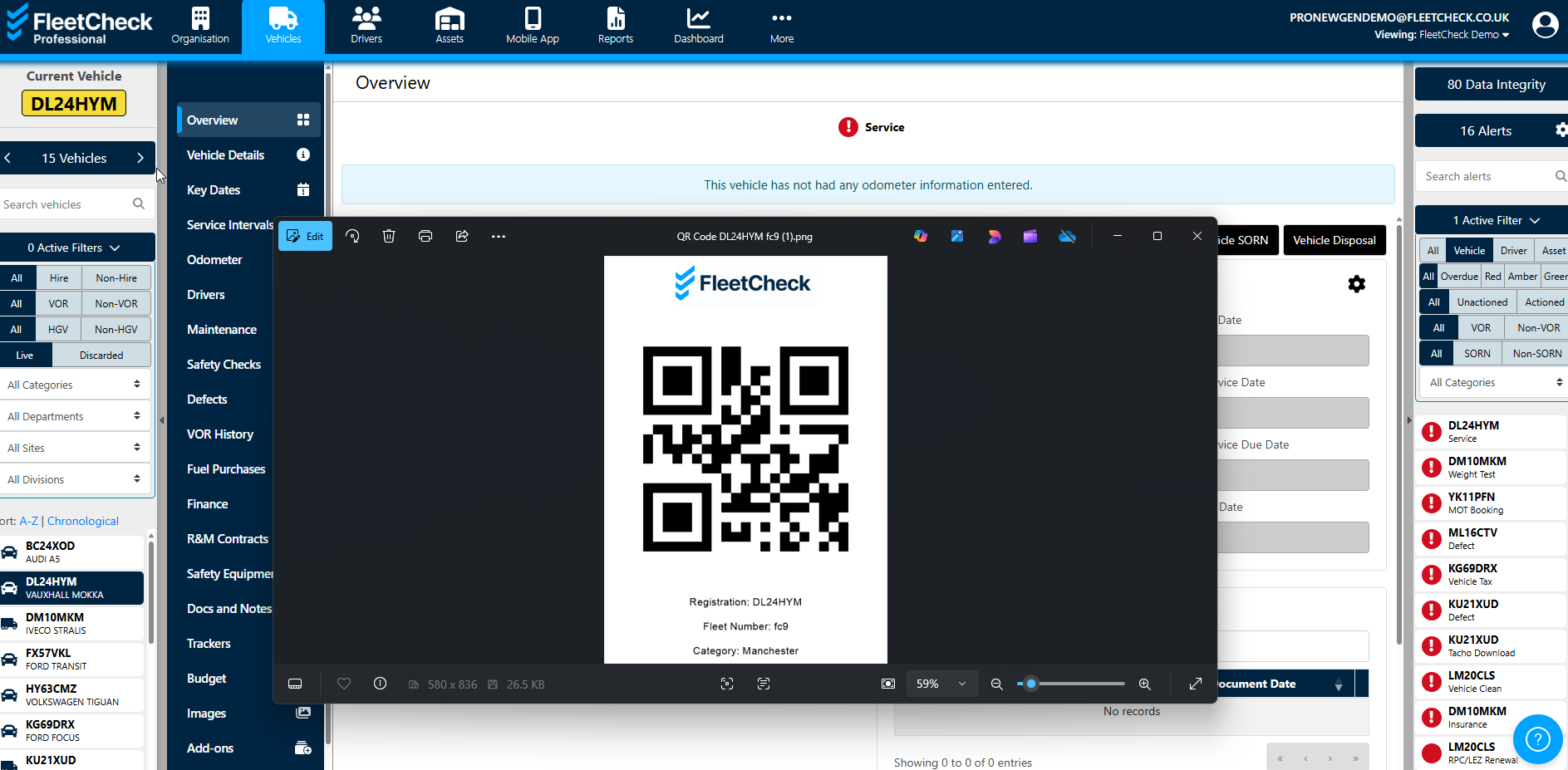
This can now be printed out ready for putting on the vehicle.
You will notice that the vehicle in question is detailed on the QR code print out, the fleet number and the Category making it easier for you.
The driver will then be able to add the vehicle to the app to complete a walkaround check using the camera on the app as opposed to manually adding the vehicl