Every checklist completed by a driver through the FleetCheck Driver mobile app will be gathered into one helpful location inside the 'Checksheets' page - you can create as many checksheets as you need and there are no limitations. You can make your checksheets as basic or as detailed as needed and can come back at any time to edit or add to them.
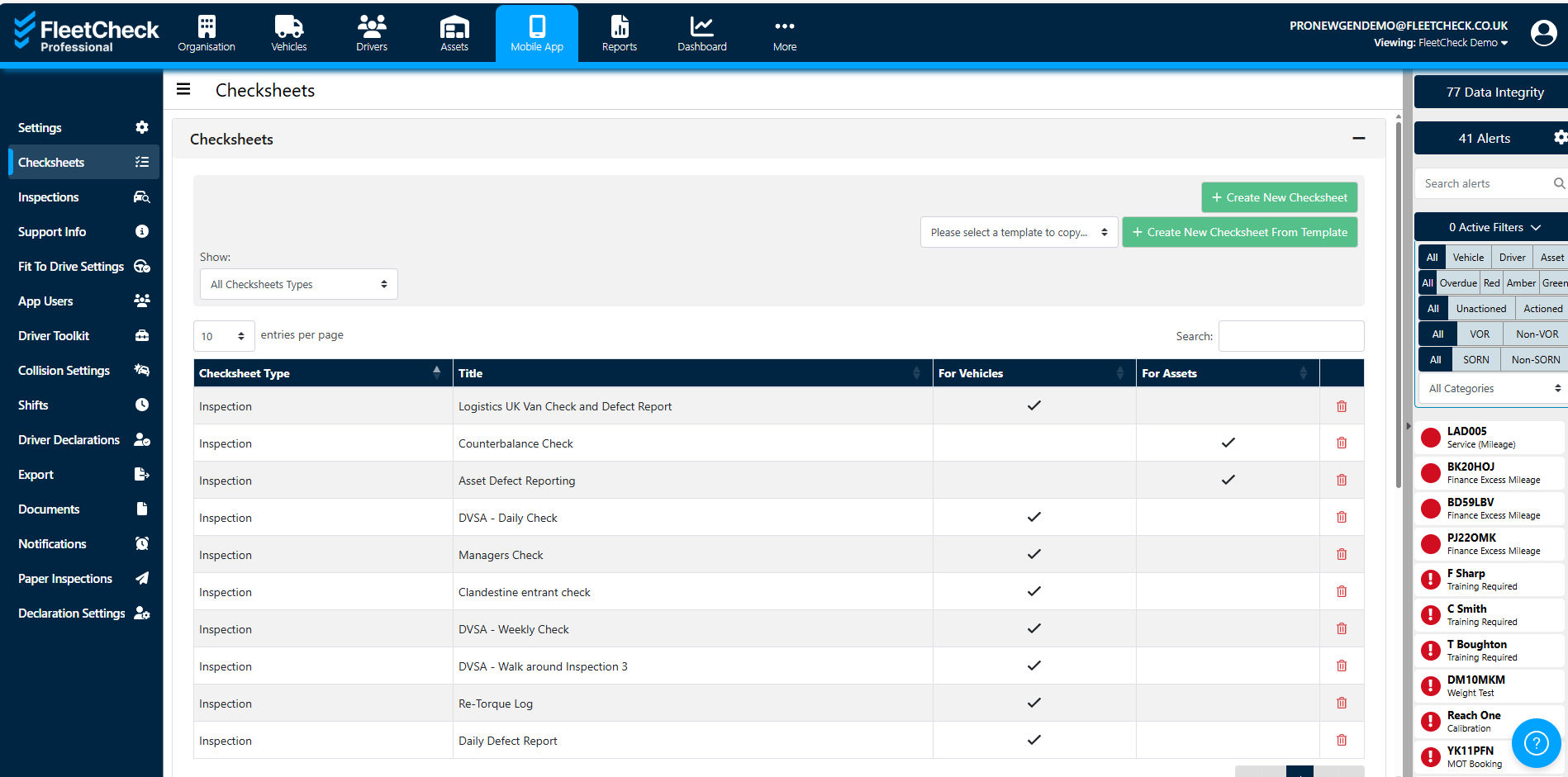
To edit an existing checksheet, simply click on the checksheet title to open the template. Here you can add or remove fields to customise your checksheet.
To build a new checksheet click '+ Create New Checksheets' which will open a blank template for you to customise.

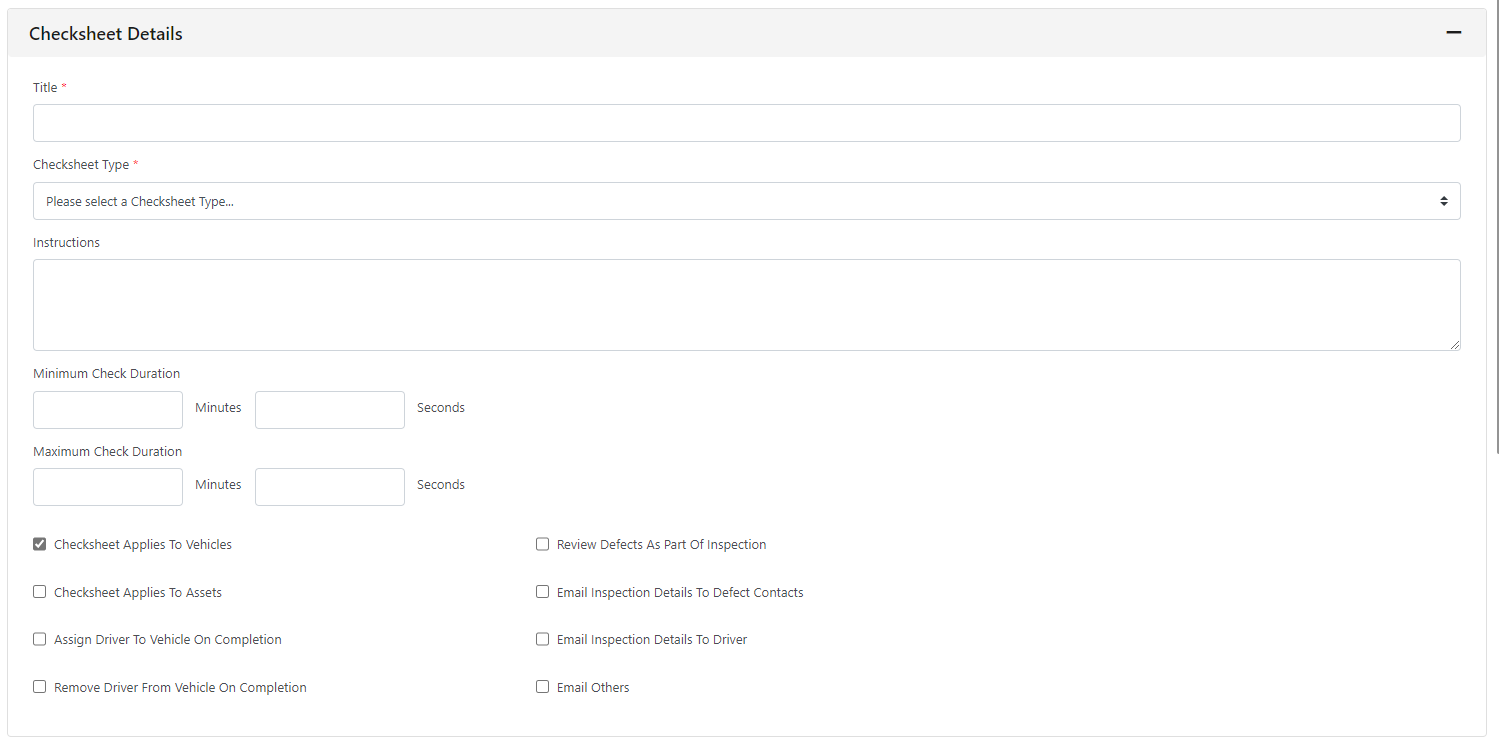
Give the Checksheet a title, select the type and input the minimum/maximum duration. You then have various options to choose from such as Inspection defect contacts etc - simply select the ones that apply to you.
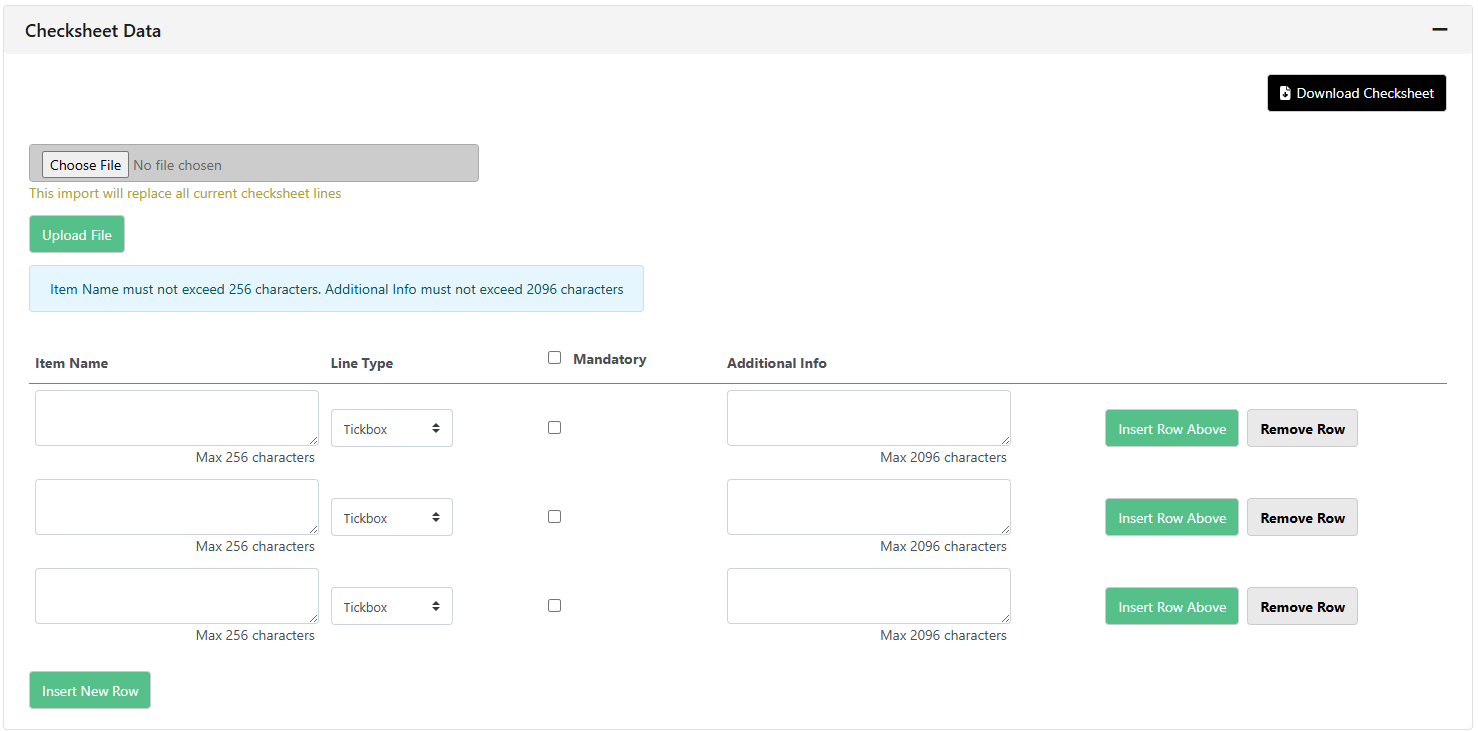
In the Item name, start typing in the areas of the vehicle which you need your drivers to check. You can decide whether they need to respond with a tick, Yes/No/NA, text, numbers, dates or times, mileage, tread depths, photographs or signatures.
You can tick the mandatory box to ensure that the driver must complete that particular area of the checksheet in order to submit it to you. If they do not complete it, the checksheet will not close.
If you have a variation of vehicle types in the fleet which require different levels of checks, you can create a checksheet specifically around that vehicle type - this can be set up using a filter at the bottom of the page to ensure that only the driver who types in the registration of that vehicle will have access to that particular checksheet.

When your new checksheet has been built simply click 'Save'.