It is easy and straightforward to process a driver's licence information within Fleetcheck - this will help you manage your team of drivers by receiving driver alerts for upcoming actions or dates.
To view the licence section inside a driver's profile, select the 'Drivers' tab from the main menu followed by the name of the driver from the side menu, then 'Licences' from the secondary menu.
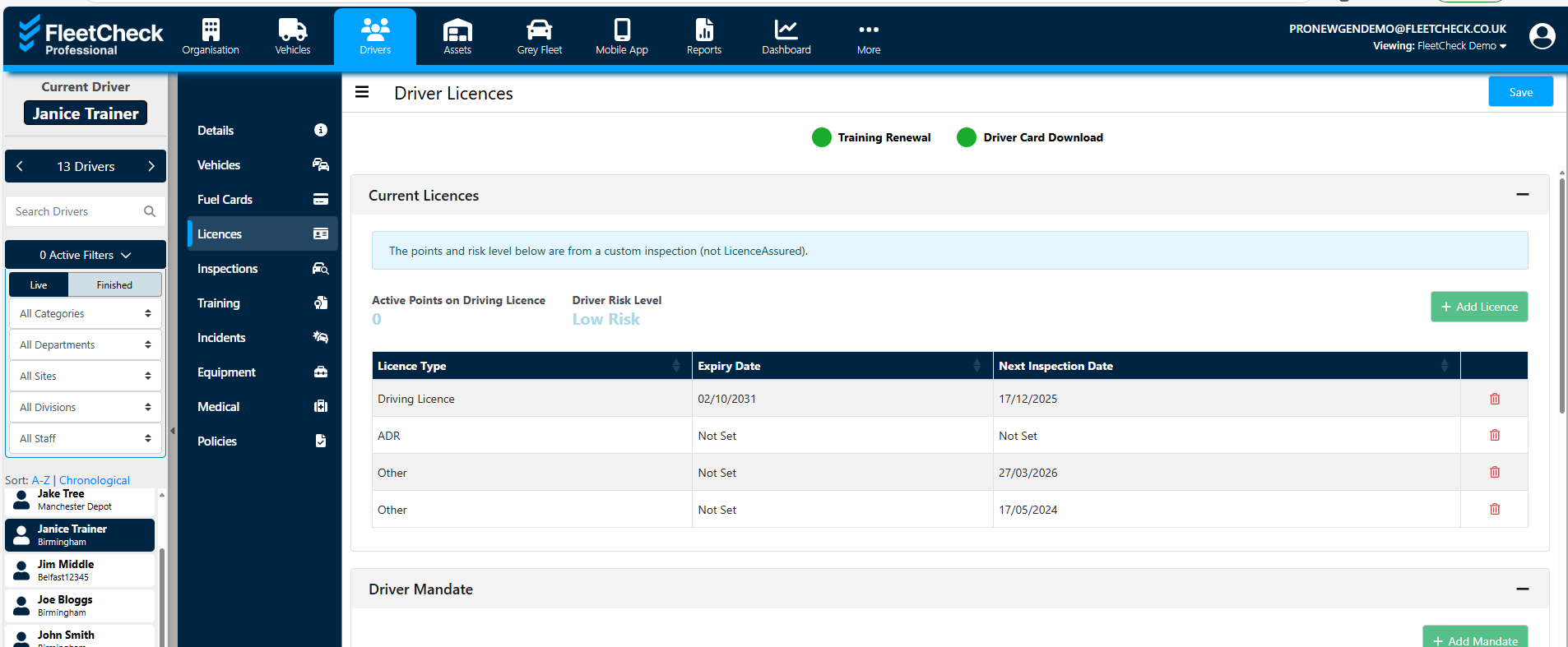
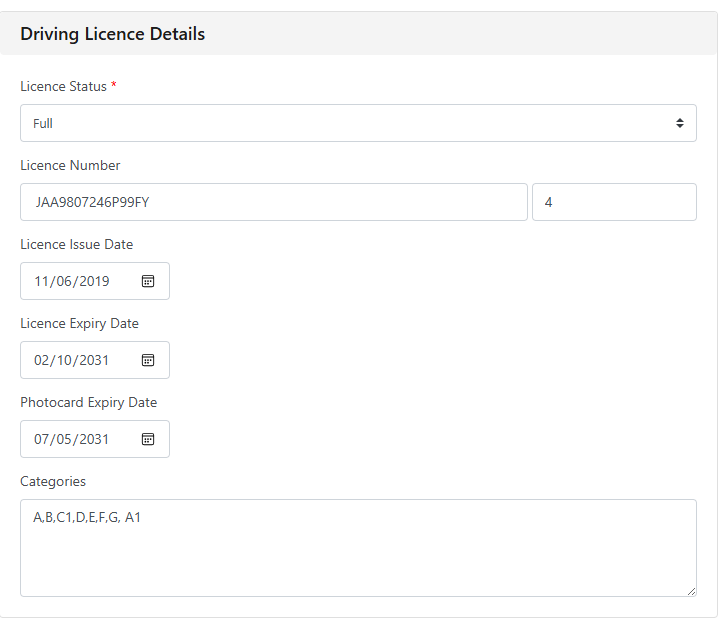
Any licences for the driver are listed on this page, as well as the expiry and next inspection dates. Clicking on a licence leads to a page displaying the licence details as well as any penalty points accrued.
To add a licence to a driver, click "+ Add Licence" at the top right of the screen, select the licence type and then click "Save". The licence details such as expiry date can then be inputted by clicking on the new licence.
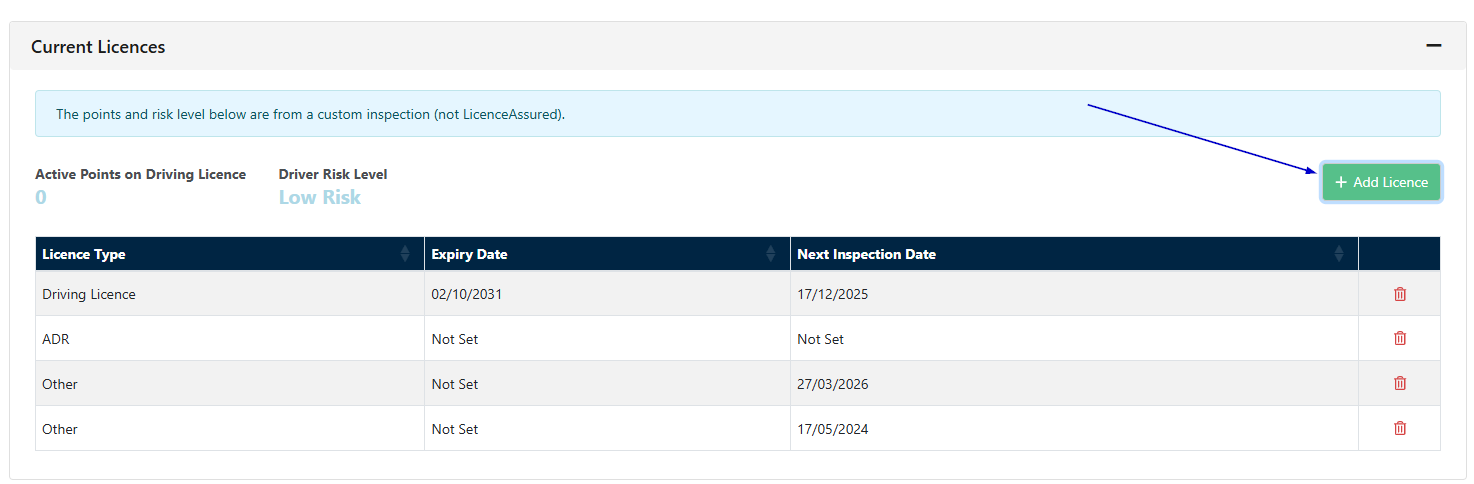
The same can be done for adding a driver mandate.
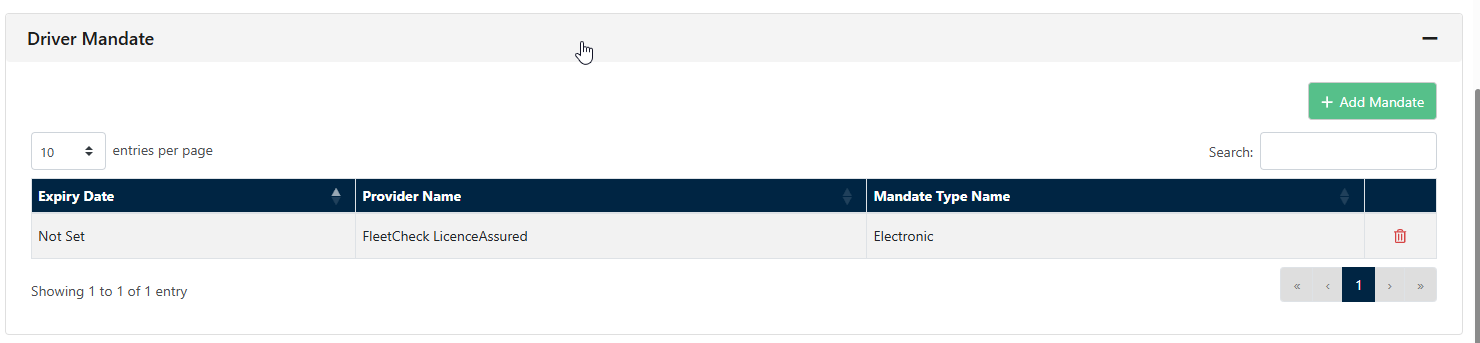
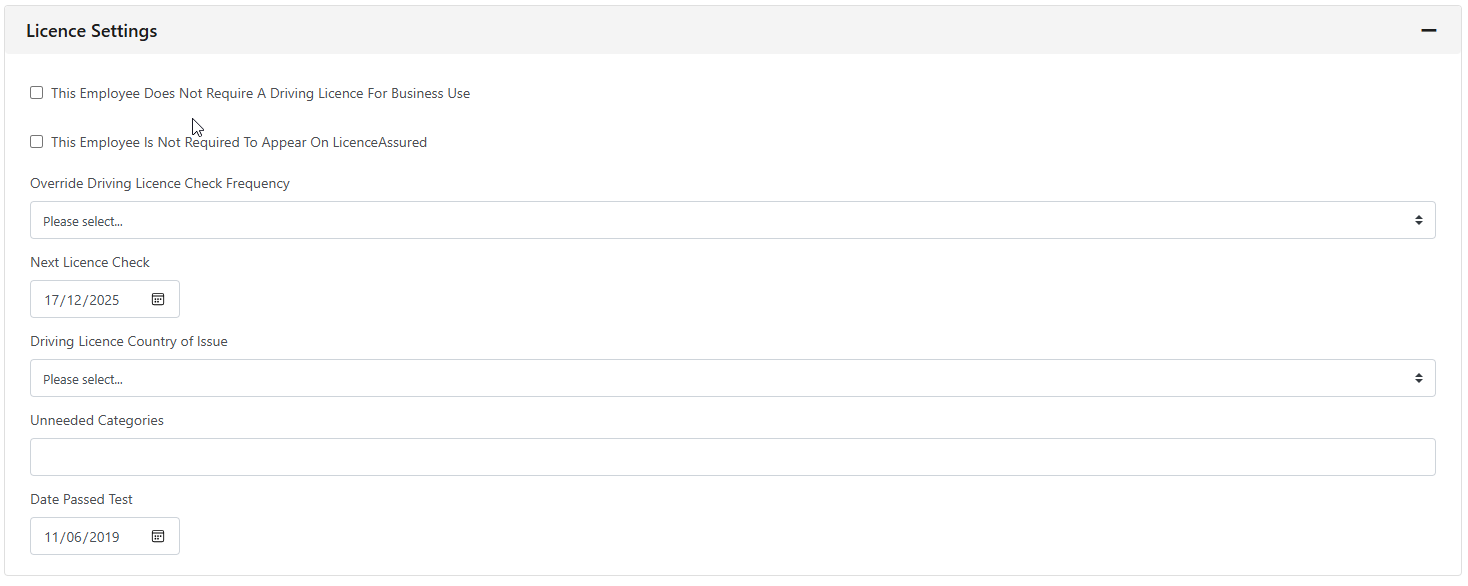
If you scroll down you also have the Licence settings area -
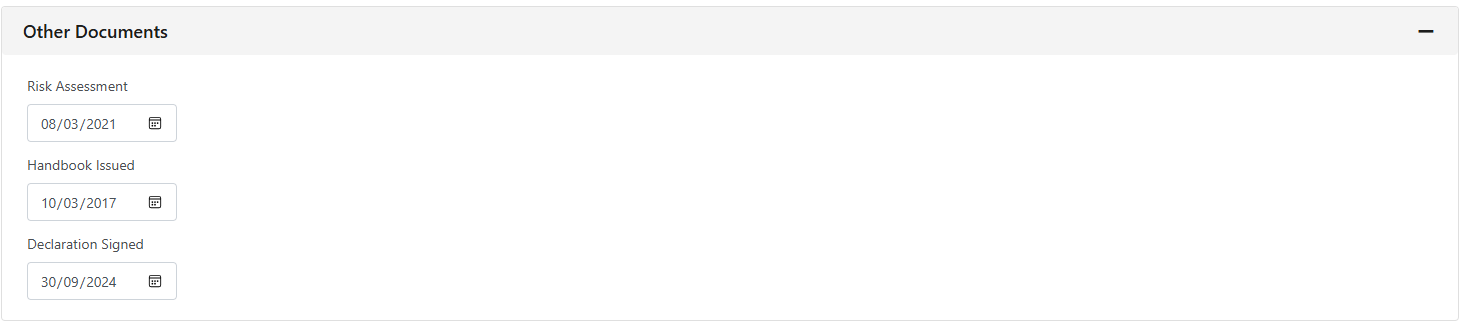
and the area where you can add other Documents is also available -
We do offer a licence checking product, which can become part of your FleetCheck software portfolio, for details on costs on the integrated software please contact sales@fleetcheck.co.uk for more information on FleetCheck LicenceAssured