Whilst defects are an inevitable part of operating vehicles, FleetCheck is here to make everything from detection to repair as straightforward and easy as possible.
Let's take a look at how FleetCheck will help you manage your defects.
The driver will add a defect via the app when completing their walkaround check - this will create a ‘defect’ alert on the right-hand side either under the ‘Vehicles’ or ‘Assets’ section.
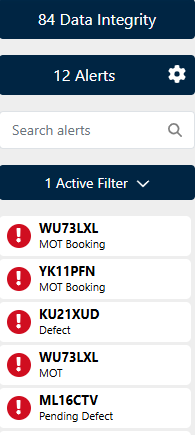
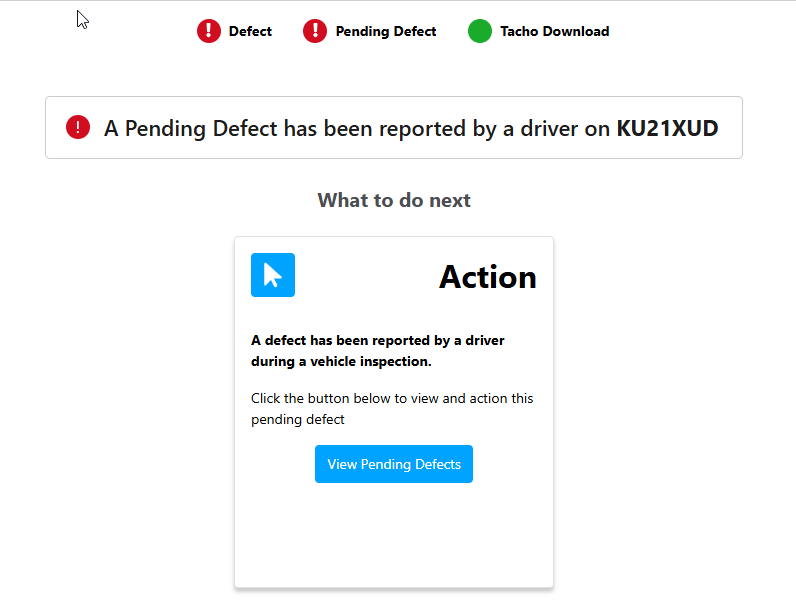
Click on the alert to view it within the vehicle's profile-
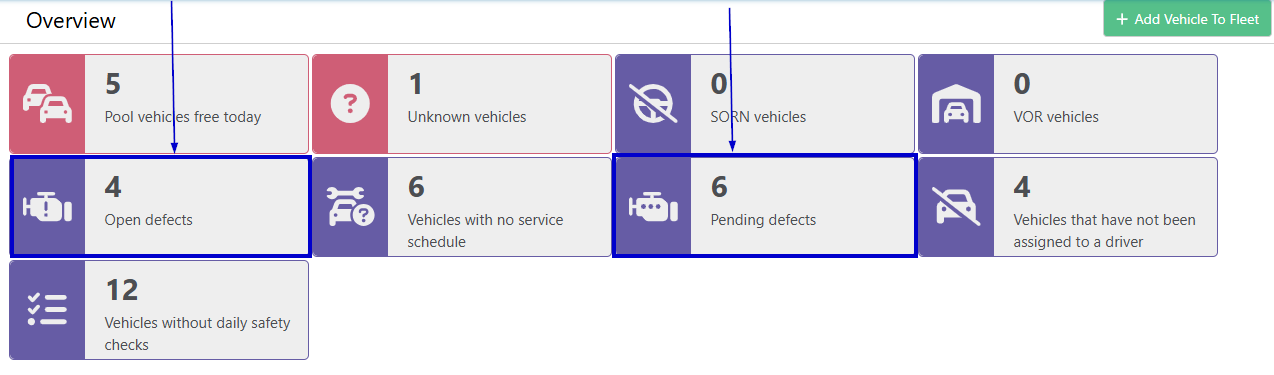
or alternatively use the tiles on the main vehicles page
This will then take you to the Defect area within the system
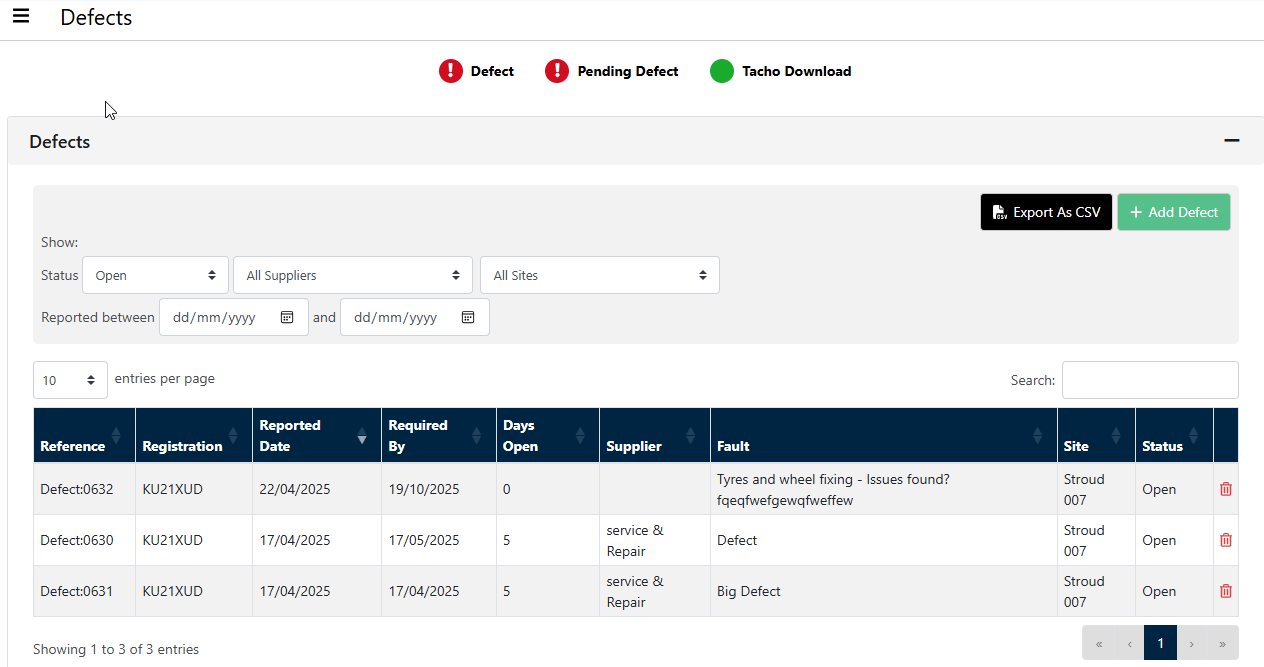
If 'defects' is selected, you will be taken to all of the defects on the system with their status displayed. You are able to filter the defects to display them by Status, so if they are set to Completed, Monitor etc
‘Pending defects’ will show all your pending defects and where you can choose to ‘add defect’ or ‘discard’.
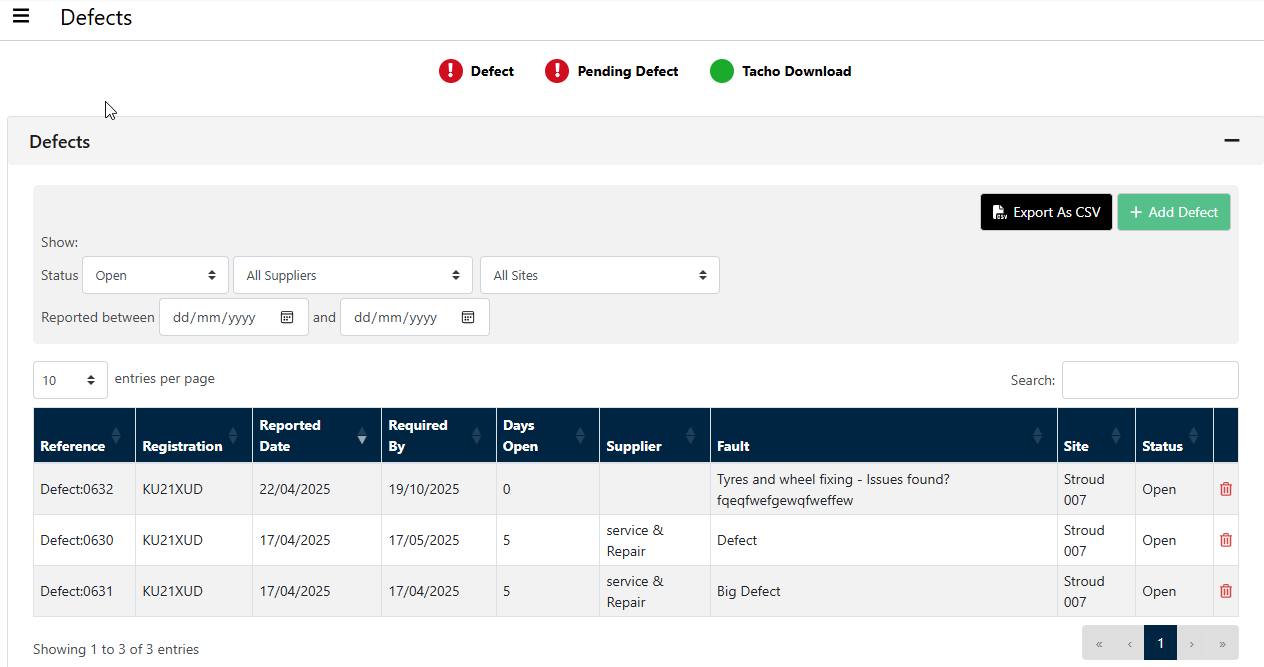
When you click the ‘add defect’ option, it will open at the bottom of the page where you can select a repair within timescale, supplier, and budget. Once you have entered this information, you can use the ‘set to open’, ‘set to monitor’ or ‘set to completed’ options.
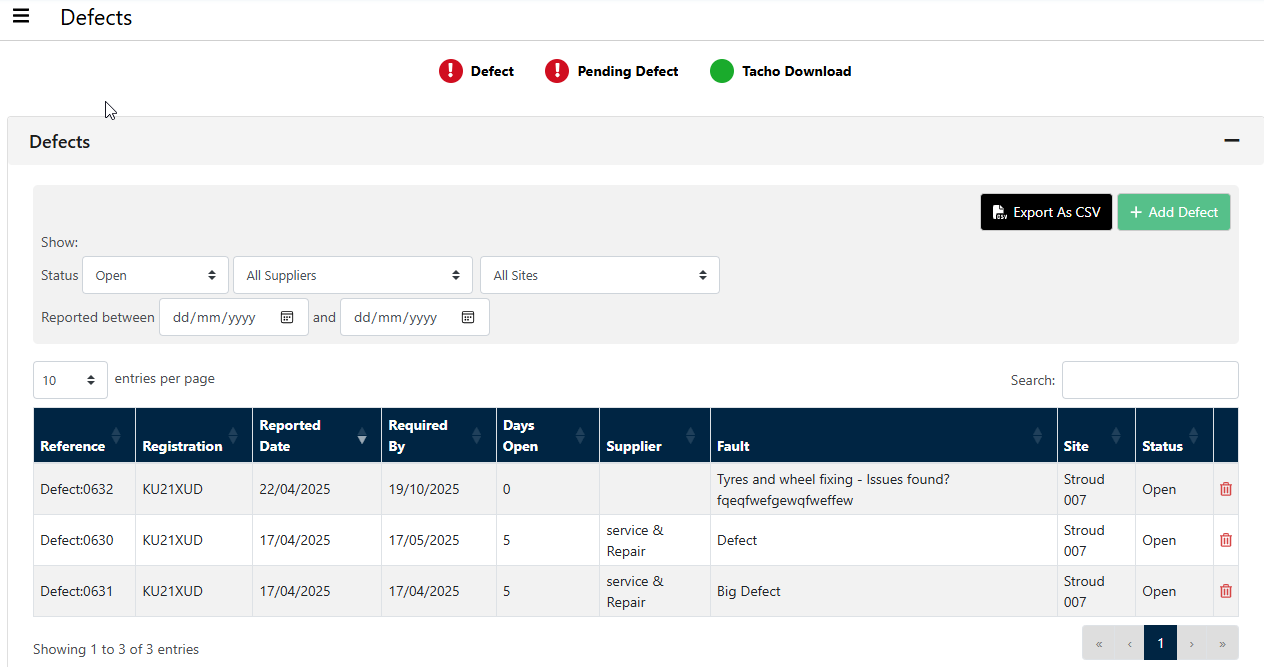
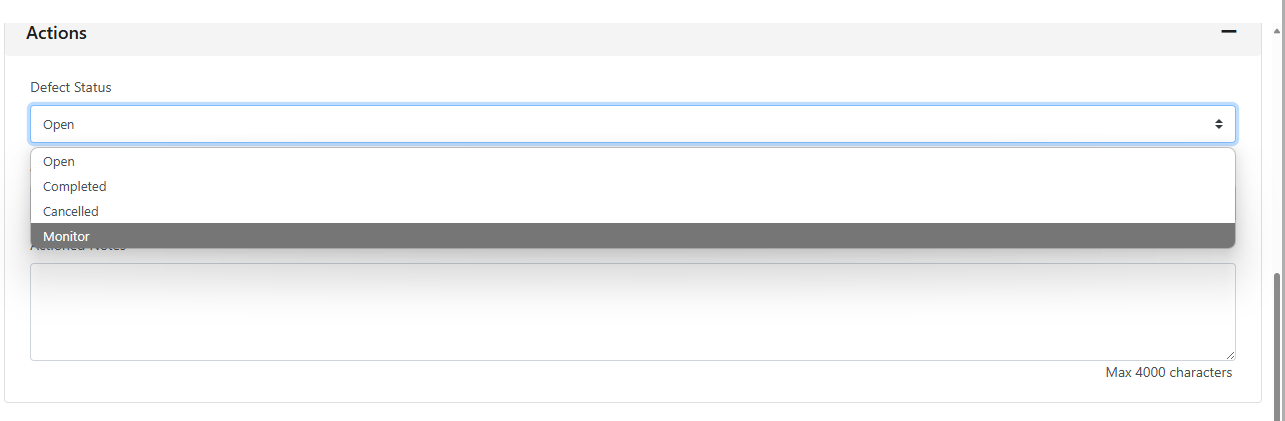
If the repair has not been completed and you are selecting the open or monitor options, then you can follow the below steps to book a maintenance appointment. If you would like to close the defect once it has been completed without adding a maintenance booking or invoice you can do so.
Any recent defects can be viewed on the ‘HGV inspections’ tab for HGV vehicles or the ‘defects’ tab for light vehicles and assets.
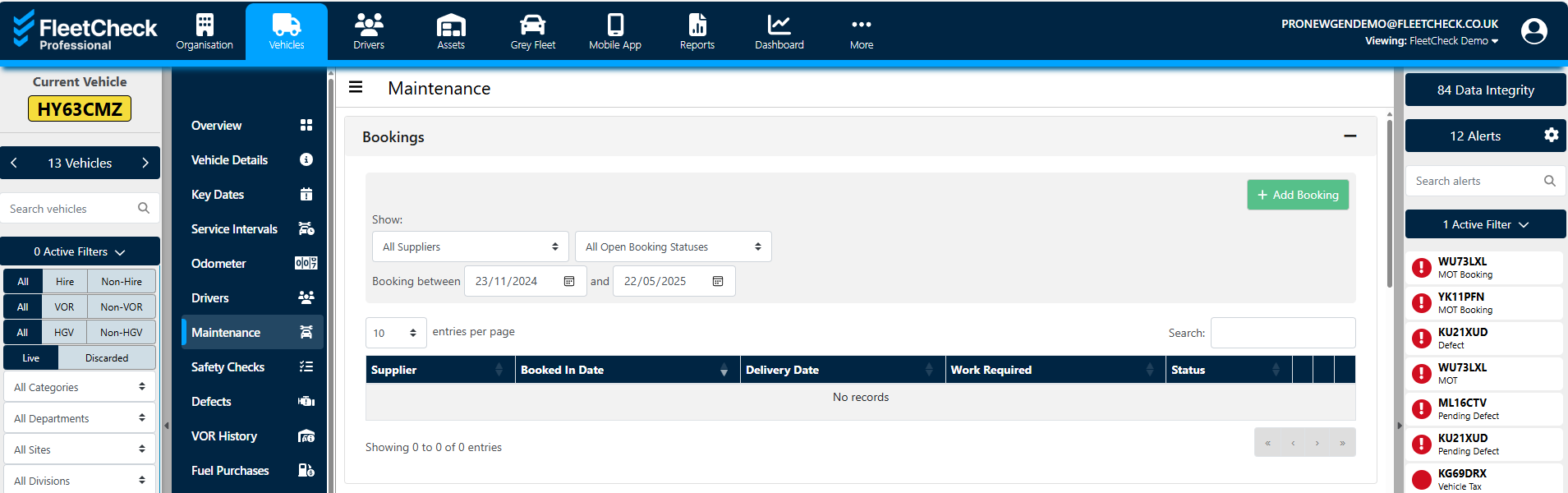
If you would like to book a maintenance appointment for the open defect, you can do so by going to the ‘maintenance’ tab and click "+ Add Booking" then enter all relevant information - required fields are marked with a "*" (red asterix). A warning message will let you know if any required information is missing.
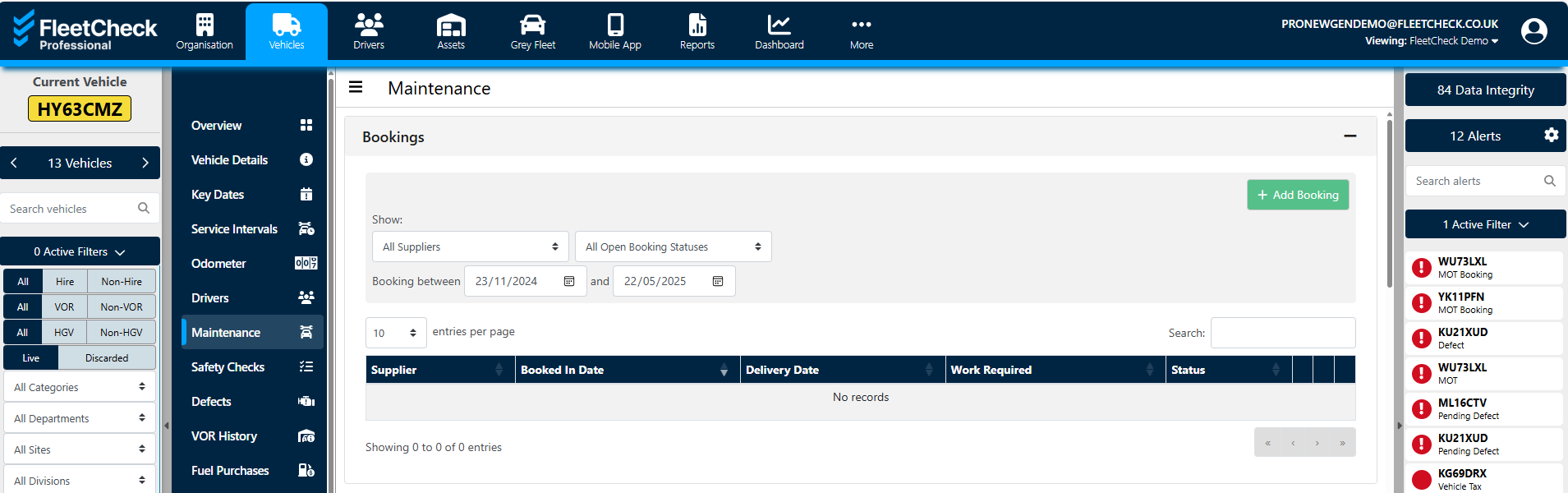
Also on this page are options to send booking emails, set reminders and estimate cost. Click either "Save" or "Save And Draft Invoice" to complete the booking setup and create an invoice for the booking.
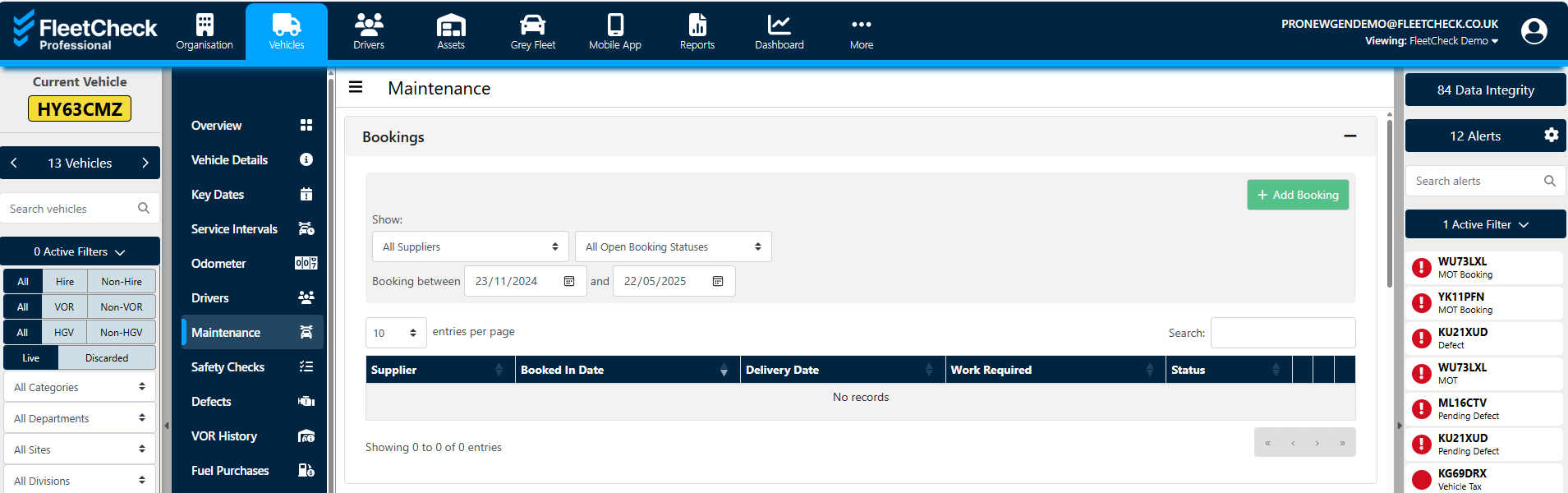
Once the appointment has been attended, you can click back into the appointment and use the ‘Save And Draft Invoice’ where you can enter the costs of the work carried out.
Please note you can only create an invoice from a workorder within the vehicles section. For an asset you must click the ‘add invoice’ button.
You can now close the defect by going to the ‘inspections’ or ‘defects’ tab and clicking the relevant defect and mark it as completed.