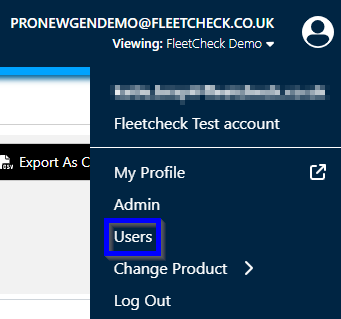
To create a new staff user to access the system click on the profile icon in the top right corner.

In the drop-down menu click ‘Users’.
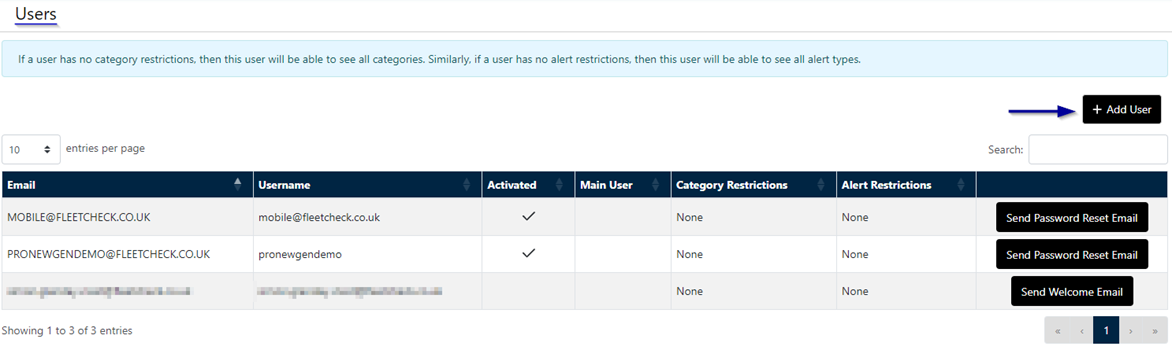
Once you get to this page click ‘Add User’. You can also search for any existing users using the search tool below.
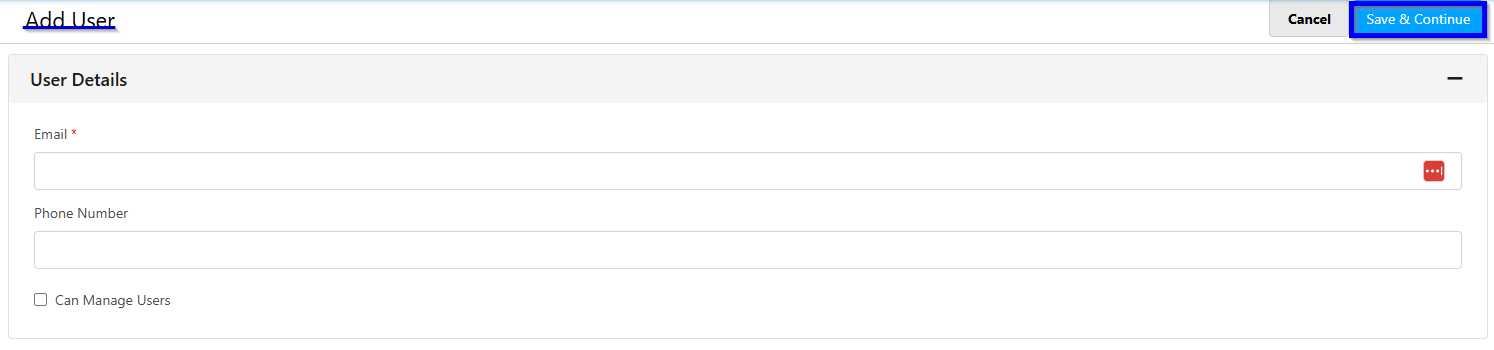
Once you click ‘Add User’ type in the Email and phone number of your new user and click ‘Save & Continue’.
Once the new user has been created, click on the new user.

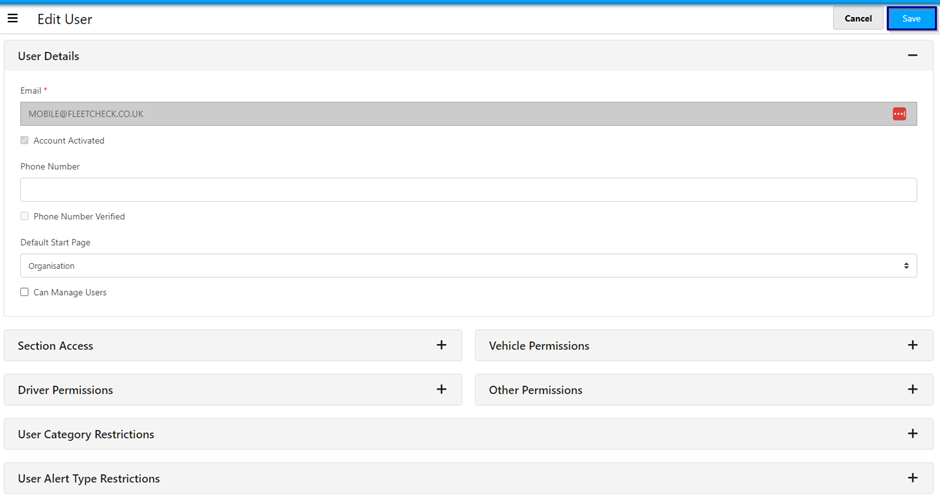
This will take you to where you can edit your new user’s details, as well as alter the user’s specific access’, permissions and restrictions. Once edited press save.
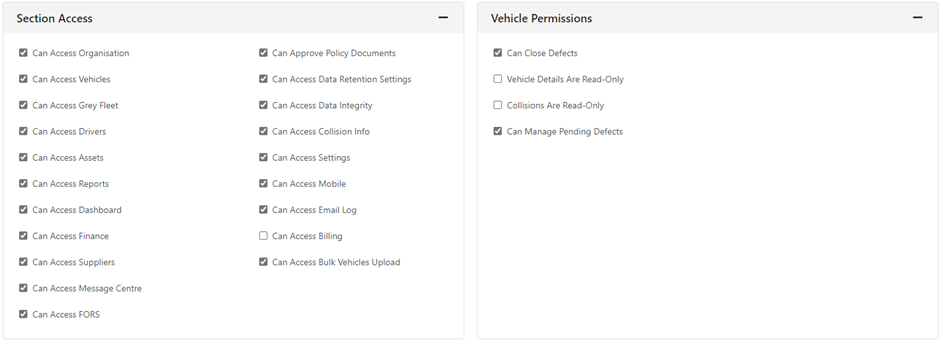
Section Access & Vehicle Permissions:
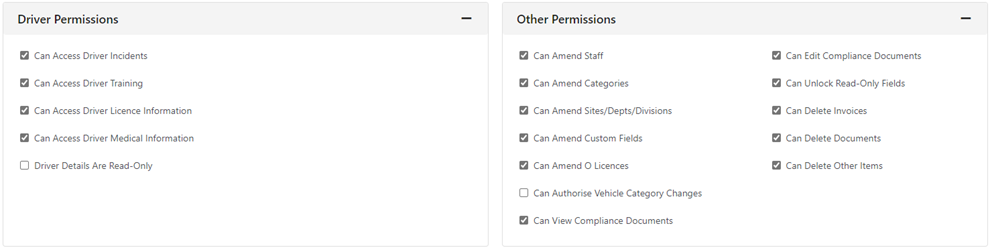
Driver Permissions & Other Permissions:
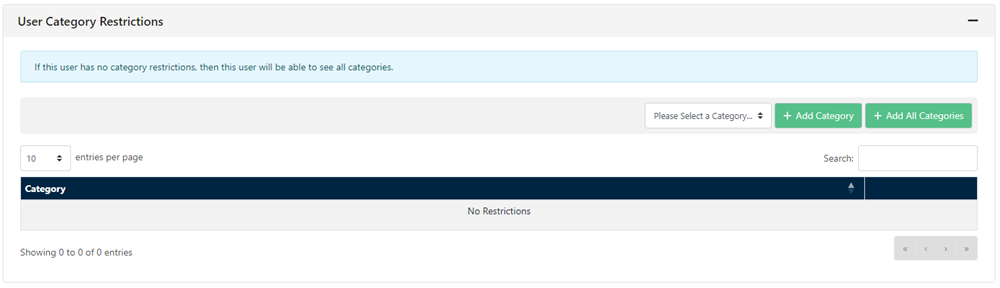
User Category Restrictions:
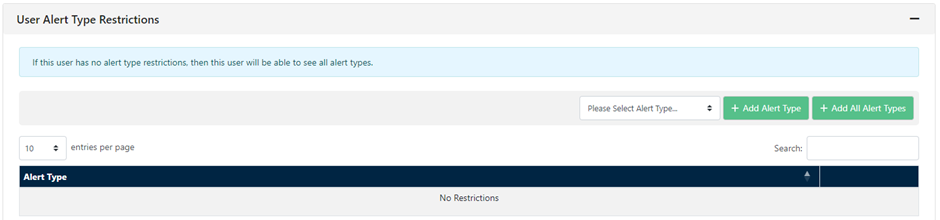
User Alert Type Restrictions: