In FleetCheck Professional you can add custom fields to vehicle types, drivers assets and sites.
Custom Field's might be useful to a client who needs to remember something specific about a site, driver or vehicle, and it is a good place to store it on the software.
Custom Fields can be created under ‘More’ in the horizontal menu bar, ‘Settings’ and then the Custom Fields tab.
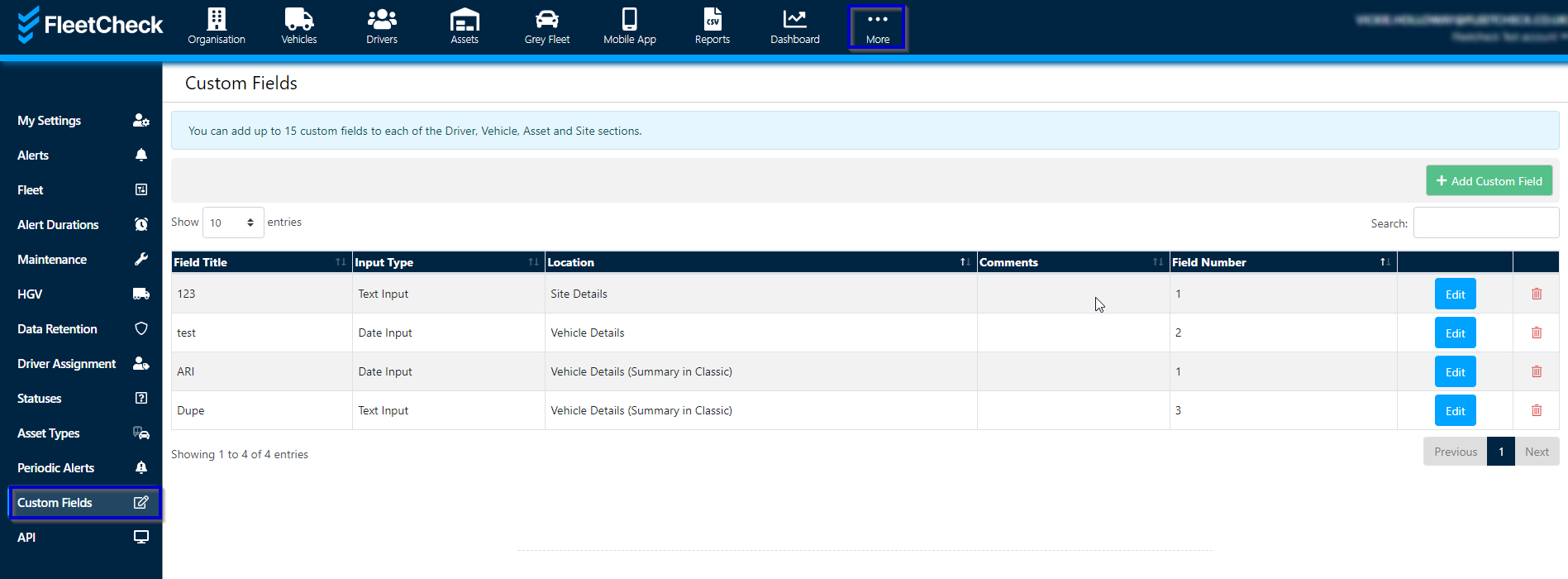
To create a Custom Field it is a case of selecting
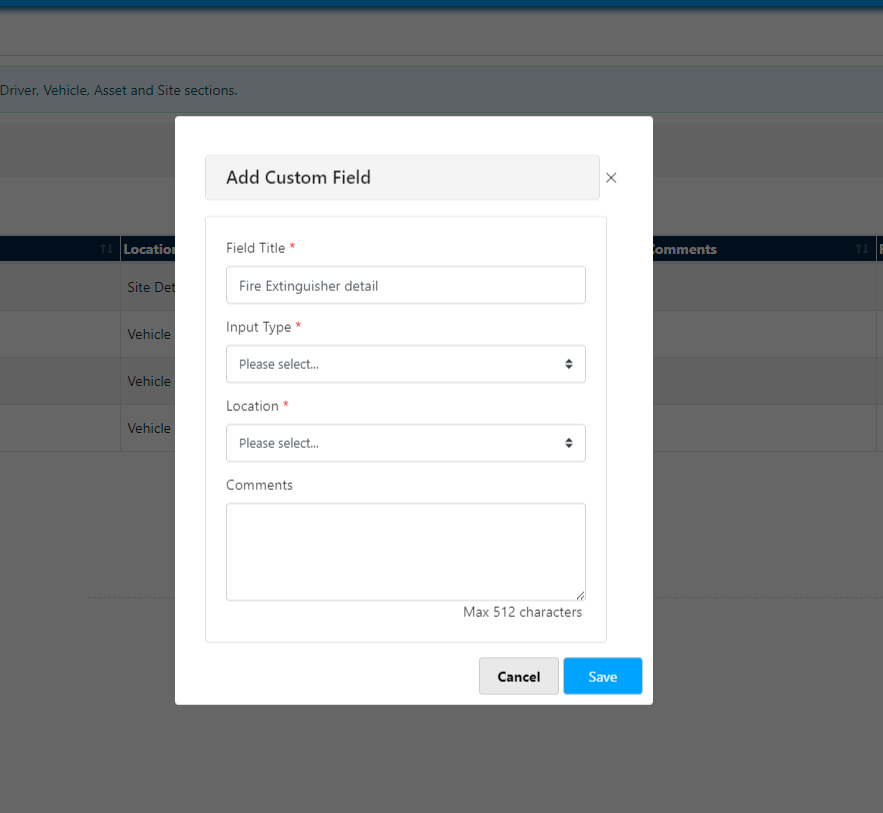
Detail the Custom field (give it a title)
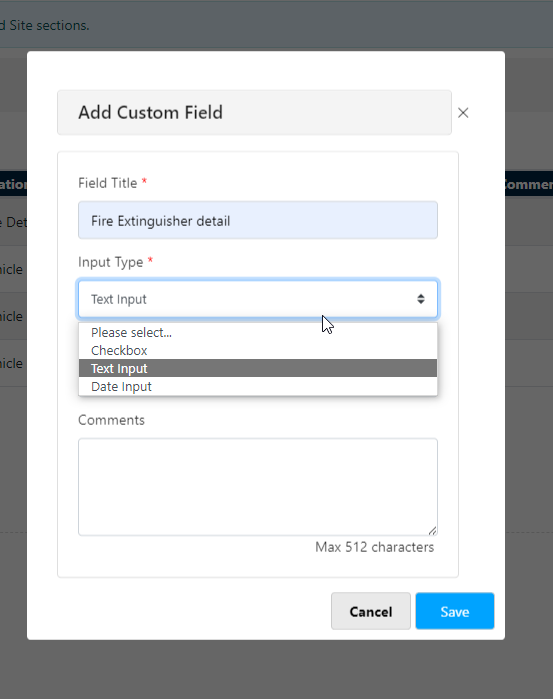
Select how you wish the text to go into the software (text/date/tick box etc)
And then select where you wish the Custom Field to be displayed on the software (which page you would like to see the information in on FleetCheck)
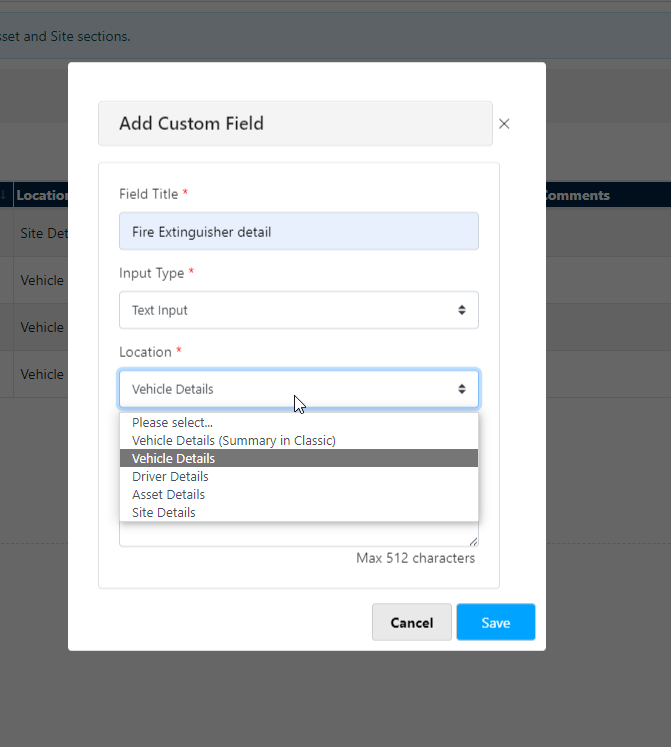
And then just Save.
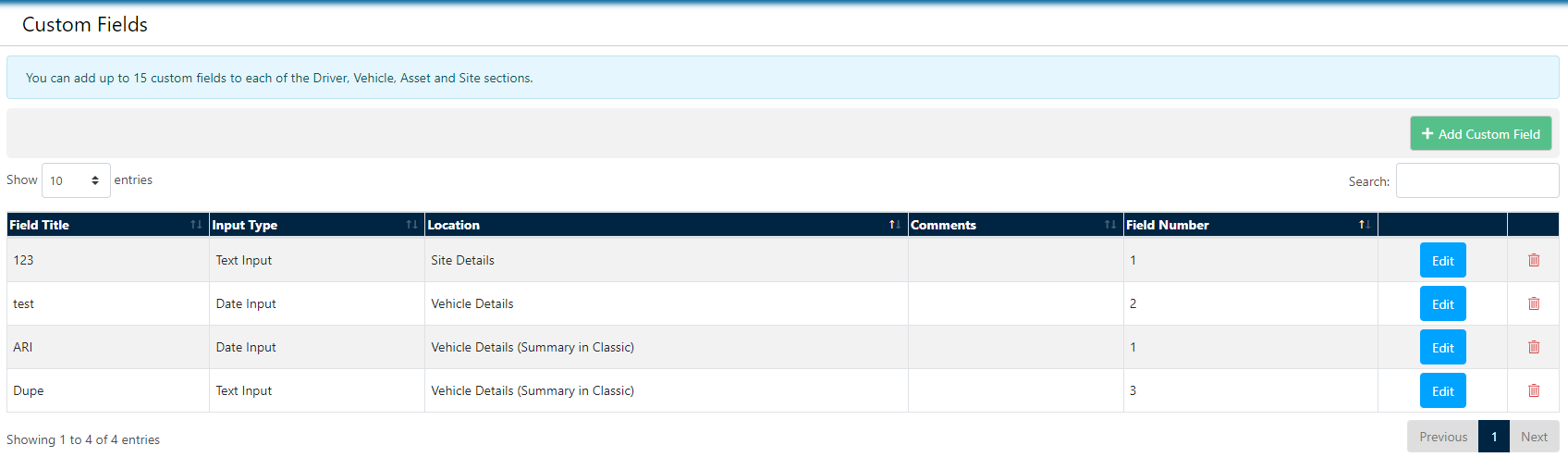
Custom fields can be added for information you would like to store but there is no field for the information. You can set these up by choosing whether they are checkboxes, text input or a date input on a number of the asset, vehicle or driver pages. You can also edit or delete custom fields within this section.
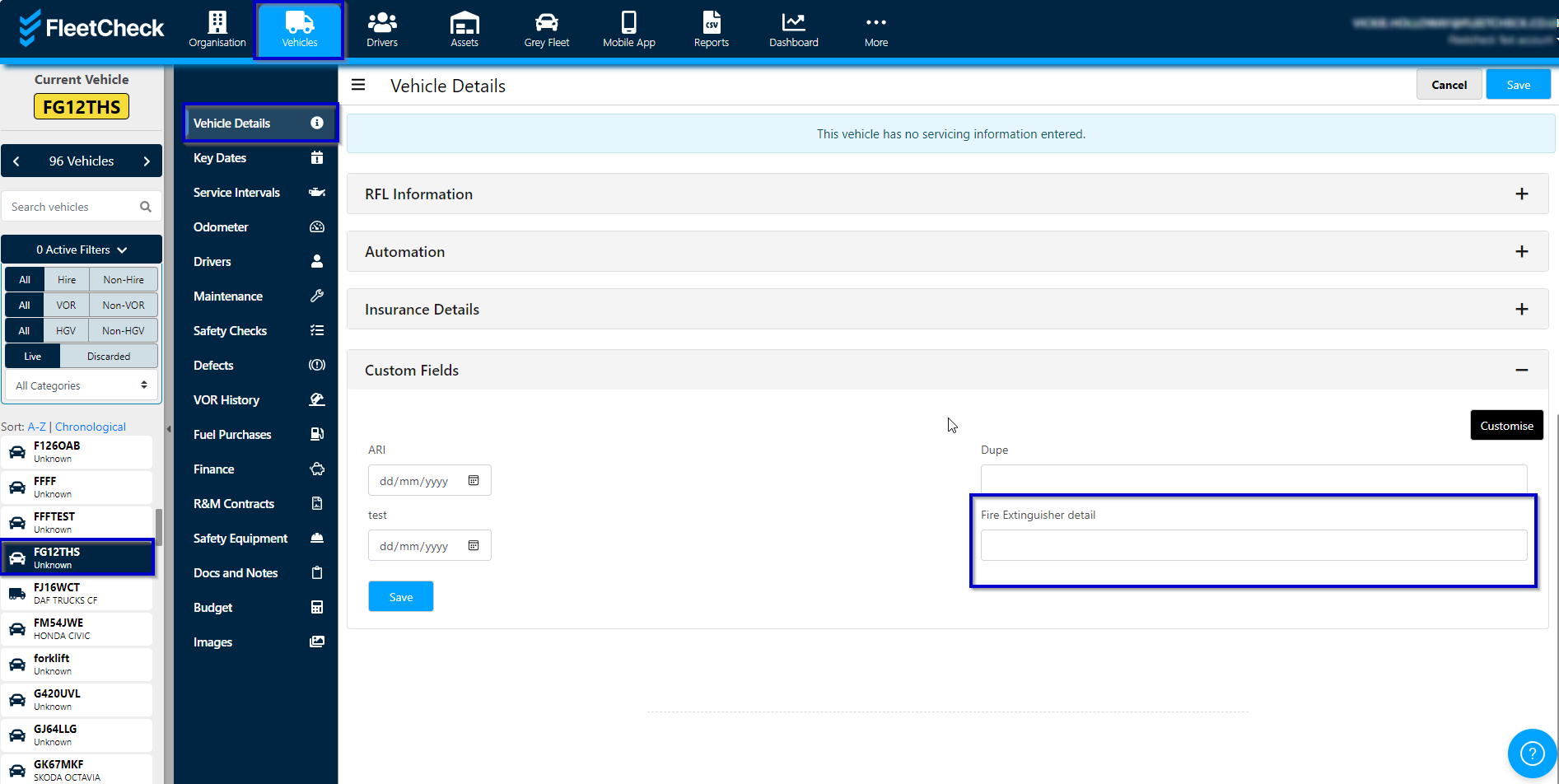
Your Custom field will then display in the software in the location of your choice ready for you to complete when needed
We have many reports available to you to help you with your custom fields
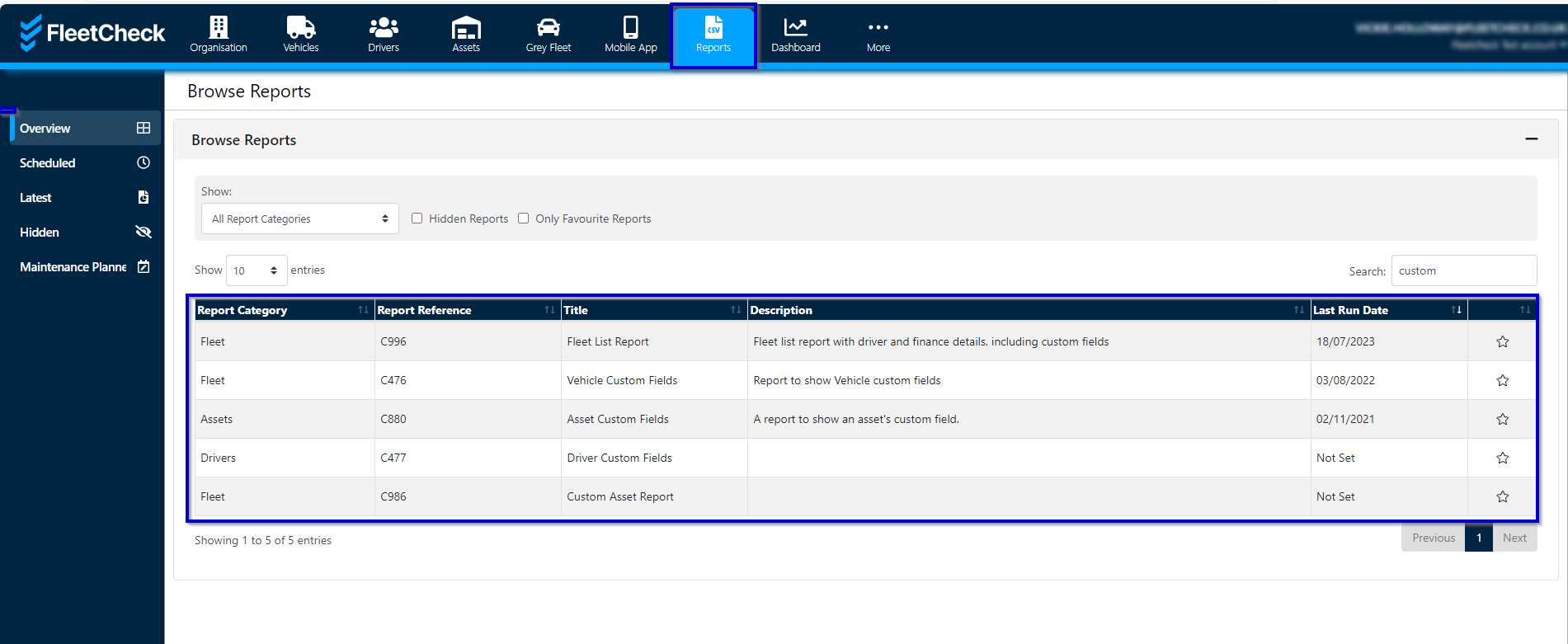
Its always worth going into our Report section and searching for a relevant report that will help you and your business.