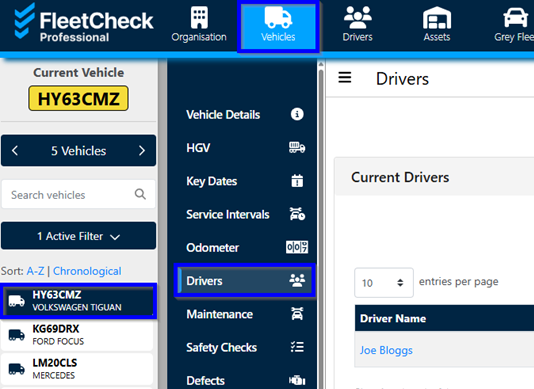
In FleetCheck you can assign a driver (or multiple drivers) to a specific vehicle and maintain their assignment history. To assign a driver, first start by selecting the 'Vehicles' main menu tab, then the vehicle's registration from the left side bar, then 'Drivers' from the secondary menu.
This will take you to the page that displays the list of both current drivers and past drivers assigned to the vehicle. Simply click the ‘+ Assign A Driver To This Vehicle’ button and enter the information in the popup window to assign them to the vehicle.
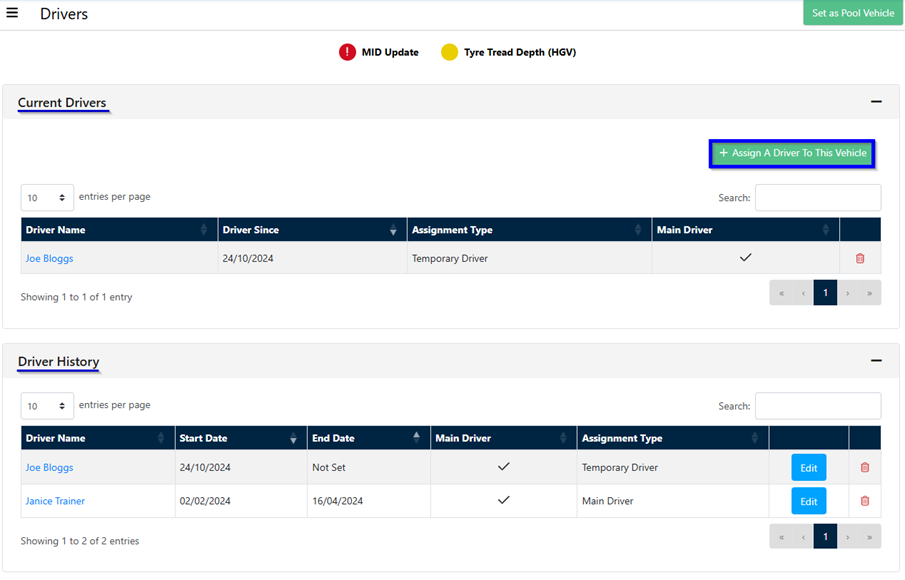
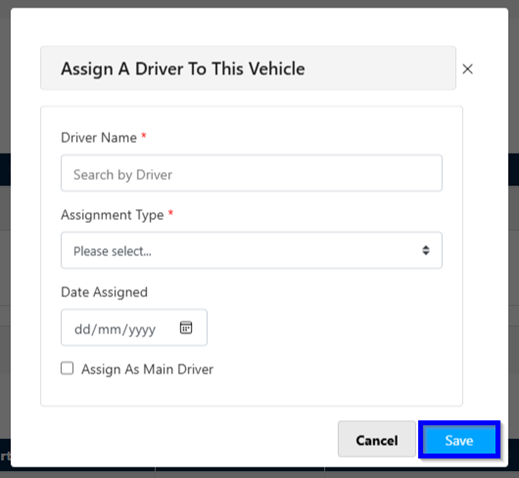
The driver will then be assigned to the vehicle, thus giving you an audit trail on who was driving what vehicle at what time.
Should you allow your drivers to move between vehicles, you are able to keep track on who was driving what vehicle if your drivers perform daily checks and they have the following selected within the mobile app area on the software.
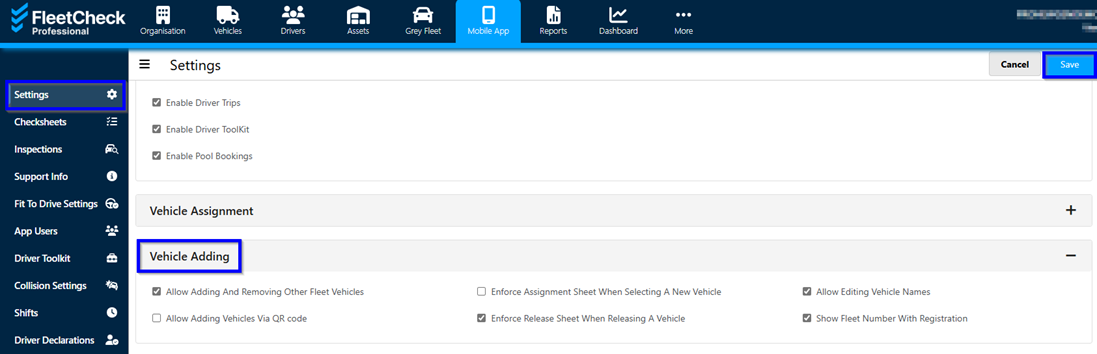
The system will tell you which driver completed the check that day, therefore giving you visibility of who was driving what vehicle on what day.