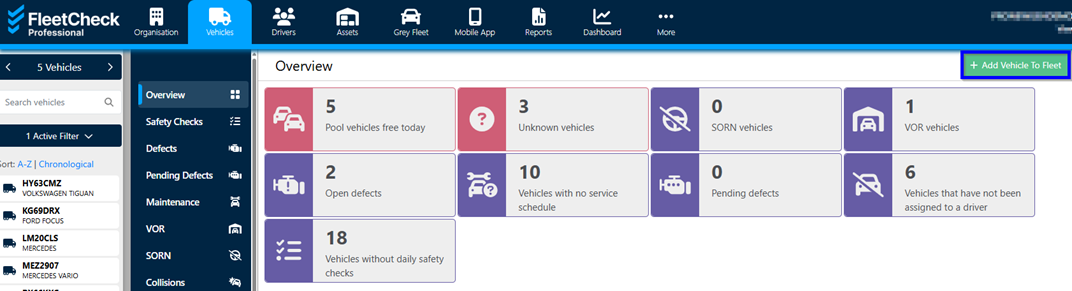
You can add a vehicle to your fleet by selecting the 'Vehicles' page from the main menu and clicking the "+Add Vehicle To Fleet" button.
The next page will ask for a vehicle type selection from a drop-down list, and then for the registration of the vehicle.
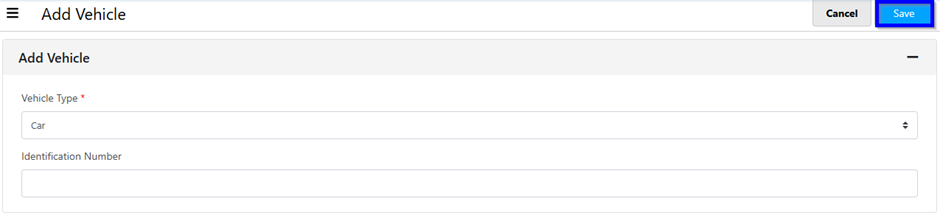
Setting the vehicle type for your vehicles will change how FleetCheck assigns the vehicle to OLicences, vehicle counts and many other processes.
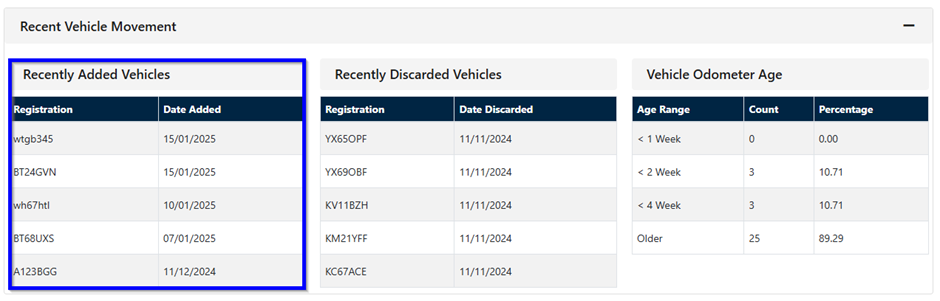
The next step will be to click on the registration from the ‘Recently Added Vehicles’ list and add the vehicle information in the drop-down fields - for light vehicles the information can be auto-populated from the DVLA database by clicking the "Get Vehicle Details" button.
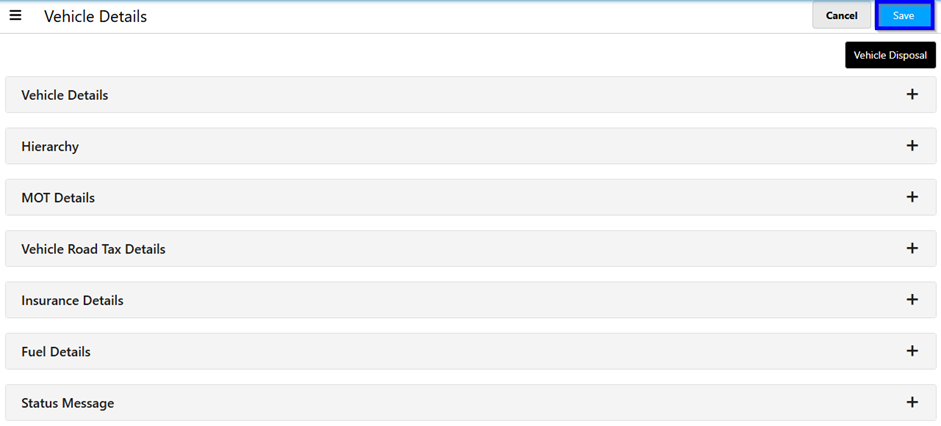
Once all the required information has been entered simply click the "Save" button to add the vehicle to your fleet. You can also delete a vehicle here by clicking the ‘Vehicle Disposal’ button.
Required fields are marked with a "*" (red asterix). A warning message will let you know if any required information is missing.
It is in here where you can assign the Ownership of the vehicle to Driver Owned, Lease Hire, Business owned etc. If the vehicle is Driver Owned - you will notice the Grey Fleet Icon appearing on the top menu bar.
